Posted on May 28, 2026 10:36
Ulysses Review: Is It Worth The Money?
Ulysses is a writing app that promises a clean, focused writing environment for authors who want to draft without wrestling with their software. But does it deliver on its promises? We put it to the test, and in this article, we’ll go over the good, the bad, and the ugly.
First, a quick overview:
-
💸 Price: $39.99/year or $5.99/month
-
💻 Compatibility: iOS only (Mac, iPad, and iPhone).
-
🌐 Access: Offline via native Apple apps (synced via iCloud)
-
👌 Best for: Writers on iOS who want a powerful, distraction-free drafting environment and do not need visual plotting tools.
|
✅ Pros |
❌ Cons |
|
Elegant interface with very little visual clutter |
Apple-only: no Windows or Android support |
|
Gentle learning curve after reading the starter docs |
No one-time purchases or free tiers available; subscription model only. |
|
Sheets and Groups make long-form drafts easy to navigate |
Importing a manuscript is less smooth than expected |
|
Useful goals, stats, comments, and advanced grammar check tools |
No strong visual outlining and plotting systems |
|
Dark mode and customization options for the editor |
No built-in collaboration or shared editing function |
|
Easy exports to DOCX, PDF, EPUB, and blogging platforms |
Not a full print-ready formatter for Amazon KDP |
Verdict: Ulysses is best suited to writers who want a minimalist writing environment and a simple, flexible system for organizing notes within the Apple ecosystem. It can handle long-form projects, but authors who need advanced plotting, collaboration, or formatting tools will be better served by more comprehensive apps like Reedsy Studio or Scrivener.
Let’s take a closer look.
User interface (4/5)
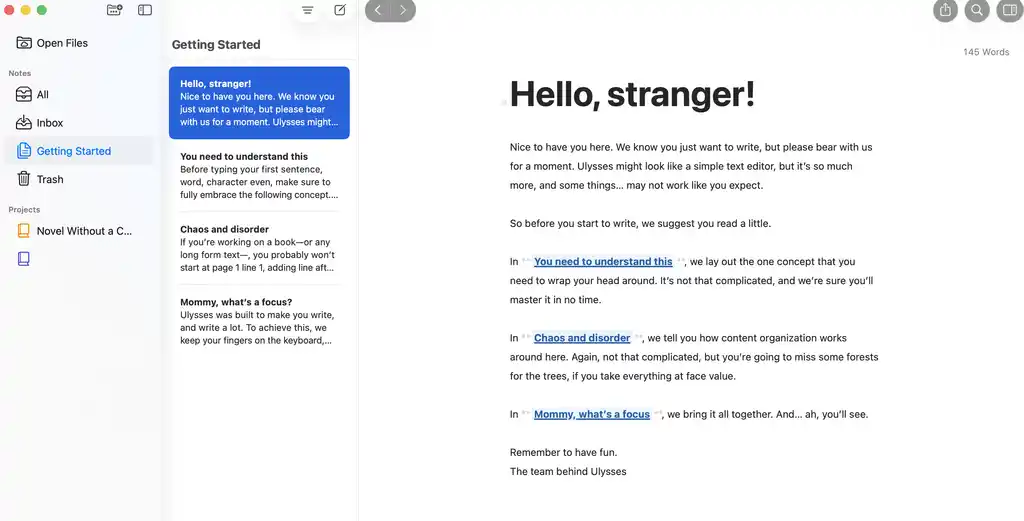
To get started with Ulysses, you do not need to sit through a long tutorial, but you should read the three (short) introductory documents. They explain the app’s basic philosophy: Ulysses is there to help you write first. Editing, formatting, and exporting all matter, but they are secondary to getting words on the page. That philosophy is apparent in the interface: there are few buttons, a lot of white space, and very little shouting for your attention.
Ulysses was built for non-linear writing. That means you may write Chapter Six before Chapter Three, jot down an ending before the climax exists, or keep notes that will never appear in the final manuscript. This is why it’s organized in two key concepts: Sheets and Groups.
Sheets and groups
A Sheet on Ulysses is any piece of writing: a chapter, scene, note, character sketch, ending, or scrap of dialogue. Groups work like folders, but with more flexibility. You can create a group for the whole book, nested groups for characters, and for all the darlings you’ve killed.
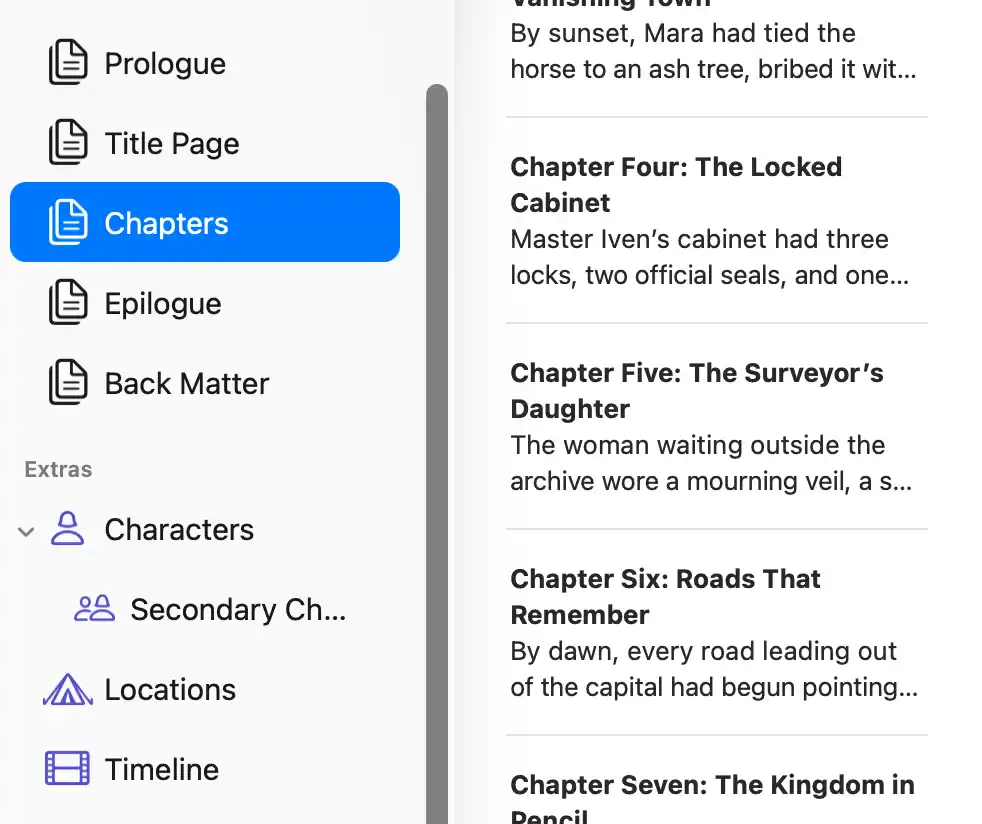
This structure is useful because it treats the different components of your manuscript as movable fragments that can easily be rearranged, combined, or set aside 一 while the focus remains on the writing.
Book writing (4/5)
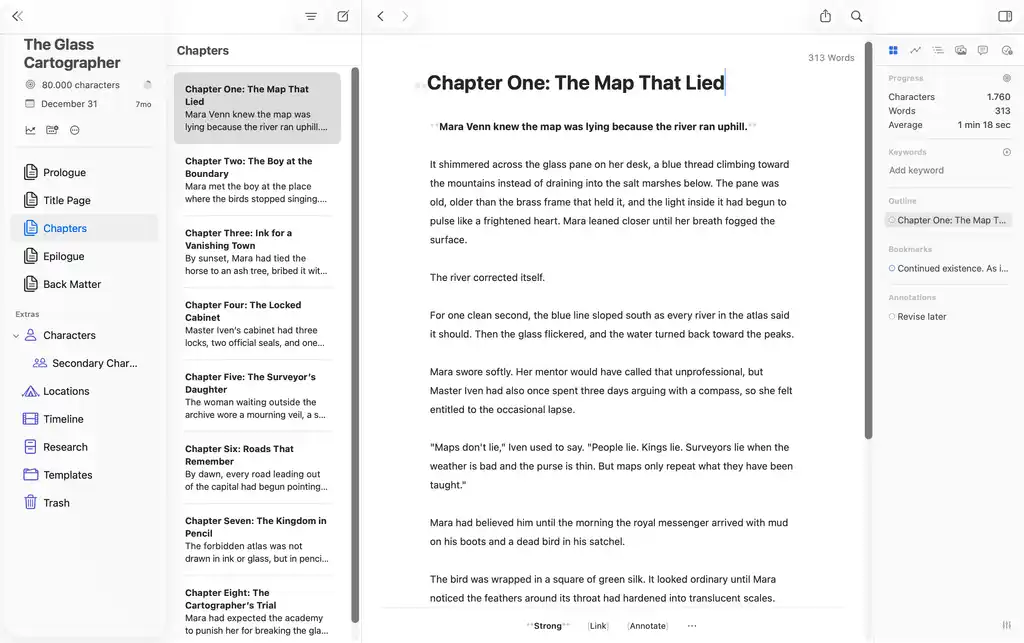
Ulysses’ editor is simple and pleasant overall. Instead of a traditional rich text editor, it uses Markdown-style formatting. To add a title, for example, you type # before a line; to bold text, you wrap it in **. It takes a little getting used to, but it’s less fussy than it sounds. You can still use familiar shortcuts like Control+B, and Ulysses will do it for you. Once the system clicks, it becomes a fast, distraction-free way to write without constantly reaching for formatting menus.
Word goals and stats
The word goal feature is also helpful, though fairly simple. You can set a target word count and a deadline, and Ulysses will calculate how many words you need to write per day while visualizing your progress. For more detail, the Dashboard (in the Top right corner) gives you additional stats on your current sheet or project.
Spellcheck and grammar support
The basic spelling and grammar checker is not as powerful as a dedicated proofreading tool. It occasionally lagged behind on some words during testing, but the Dashboard does include an Advanced Check option that feels much closer to Grammarly and catches more issues.
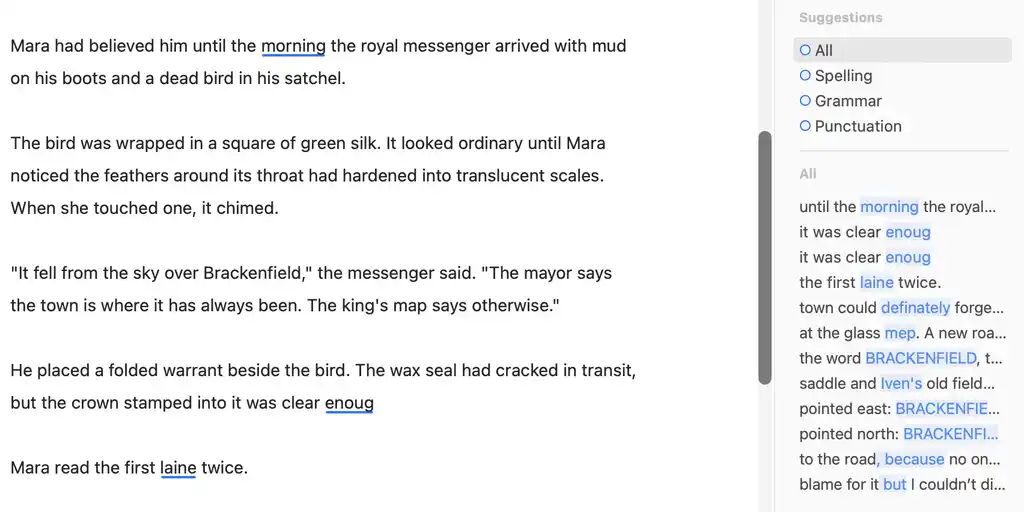
Ulysses also includes built-in AI writing and editing tools. You can highlight text and ask it to proofread, rewrite, or summarize passages, which — if you’re comfortable using AI — can be useful for quick cleanup and revisions (though be careful it doesn’t flatten your voice) 😉
Manuscript import
One awkward point is manuscript import. Technically, you can drag and drop a document into Ulysses, but in our test, that just didn’t work. The better approach was to add the manuscript chapter by chapter, which took a little longer but produced a cleaner structure.
For novel writing, breaking a book into smaller sheets is probably the right way to use Ulysses anyway. Still, if you already have a full manuscript in Word or Google Docs, expect a bit of setup before the project feels properly organized.
Before we move into the planning side of things, a word on custom settings.
Appearance and settings control
Beyond a dark and light mode, Ulysses gives you a surprising amount of control over how the editor itself looks. In the Markup settings, you can customize Markdown styling, syntax colors, image previews, and switch between different visual themes.
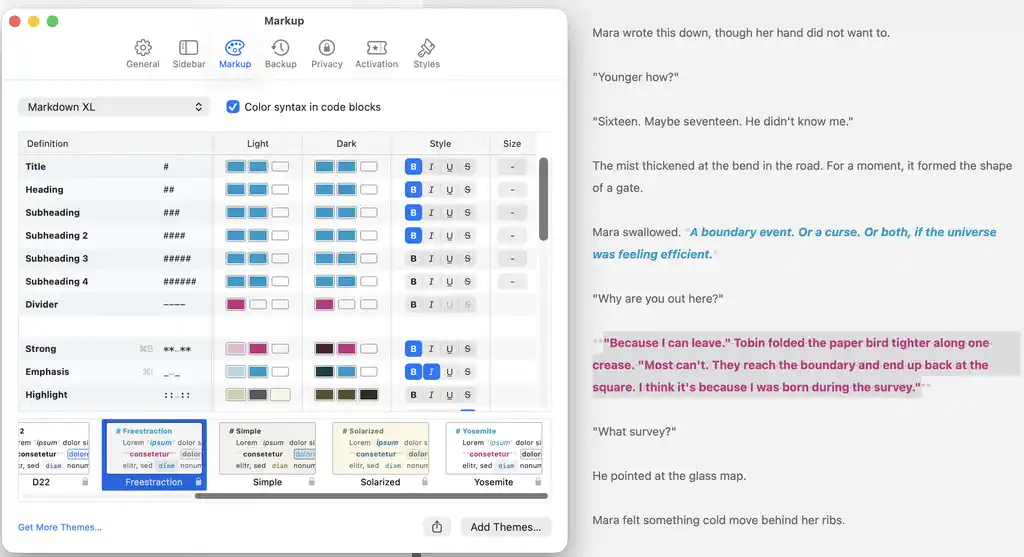
So while the interface appears minimal on the surface, there’s a fair amount of sophistication behind it.
For example, when you paste an image into a sheet, Ulysses displays it as a small black-and-white placeholder rather than a full preview, in keeping with its distraction-free philosophy. But if you prefer, you can adjust the settings to display larger, full-color image previews instead.
Now, back to the main plot…
Planning and outlining (2/5)
Ulysses can hold supporting material for a novel, but it does so in a fairly lightweight way. Character notes, location descriptions, worldbuilding rules, and research snippets can all live alongside the manuscript as separate sheets or groups.
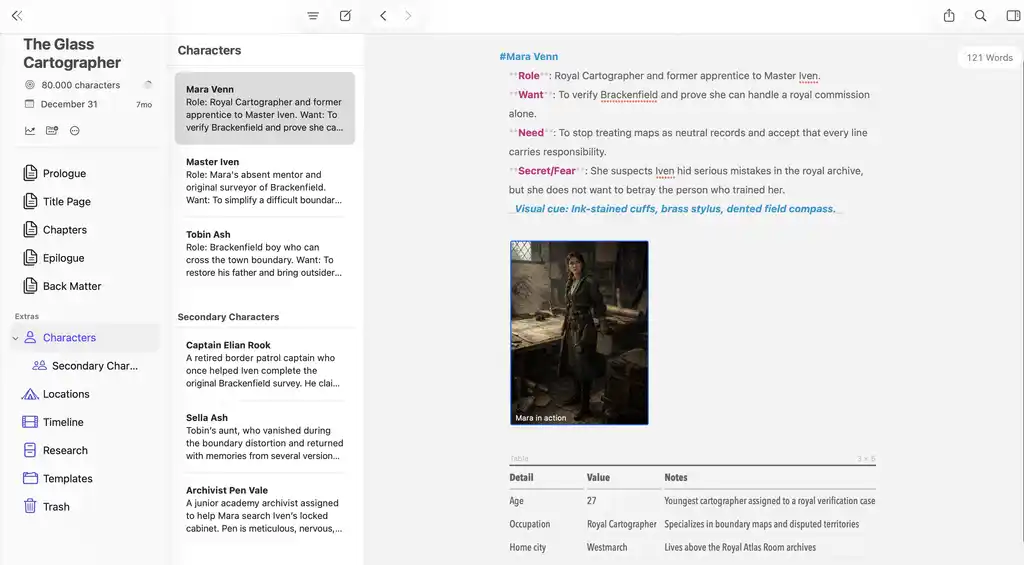
For basic outlining, you can create a master outline sheet with headings for acts or major plot points, then use bullet lists for scenes, subplots, character beats, and revision notes.
There are a few extra tools that help with organization. Keywords can be added to sheets, so you can tag scenes by character, location, subplot, or status. Filters can then pull together related sheets, such as every scene involving a specific character or storyline.
Still, compared with dedicated novel-writing tools like Reedsy Studio or Scrivener, Ulysses feels limited. There’s no corkboard, no proper index-card view, no timeline, or relationship mapping. While the notes you can make in Ulysses are useful, they don’t add up to a visual plotting workspace. So, the app is best suited to writers who are comfortable outlining in text — such as nonfiction authors, bloggers, academics, or fiction writers who don’t rely heavily on worldbuilding.
Editing and collaborating (1/5)
Collaboration is one of Ulysses’ biggest weaknesses. There are no built-in tools for inviting an editor, co-author, proofreader, or beta reader into your project. You can’t share a manuscript the way you would in Google Docs, leave threaded comments for someone else, or work together in real time.
The main issue is that Ulysses relies on iCloud to sync your library, and that library is tied to a single Apple Account. In practice, this means your Ulysses workspace is designed for one person, not a shared writing team. That’s fine if you only ever write alone, but it becomes a serious limitation once you want feedback or editorial input.
There is a workaround, but it’s clunky. If the other person also uses Ulysses, you can share files through a third-party cloud service like Dropbox by connecting an external folder. But that’s not real collaboration; it’s more like passing files back and forth through a shared folder. For a paid writing app, especially one aimed at serious writers, this feels like a major gap.
Book formatting (3/5)
Ulysses makes exporting very easy. You can export a single sheet, a selection of sheets, or a whole group, which is useful if you want to share just parts of your work-in-progress with beta readers, for example.
The export preview lets you switch between formats like PDF, DOCX, and EPUB, while also adjusting the style and page size. Ulysses includes dozens of preformatted export styles for different file types, and you can download even more from its Styles & Themes library.
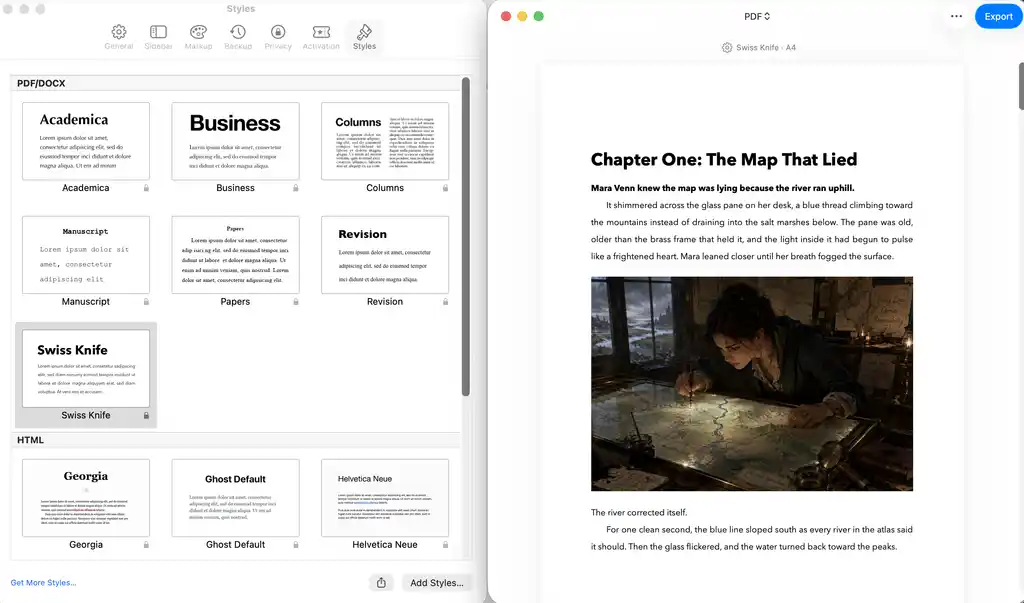
For ebooks, Ulysses is fairly practical. When exporting to EPUB, you can set the author name, title, cover image, formatting style, and table of contents levels. It’s not as granular as a dedicated book formatter, but it gives you enough to create a clean ebook draft or simple finished EPUB.
For print, I’d be more cautious. Ulysses can export PDFs, choose paper sizes, handle page breaks, and create a table of contents, so it can produce a clean document. But I wouldn’t call it a proper print-ready formatter for Amazon KDP. It doesn’t walk you through trim sizes, bleed, margins, front/back matter, or platform-specific print checks the way Reedsy Studio, Atticus, or Vellum all do.
In short: Ulysses is good for clean exports and simple ebooks, but limited for professional book formatting.
Pricing (3/5)
Ulysses costs $39.99 per year or $5.99 per month in the U.S. App Store, though local prices may differ. The subscription covers Mac, iPad, and iPhone, and includes iCloud sync and Apple Family Sharing.
The value depends heavily on your writing habits. If you write across Apple devices and want a polished, distraction-free environment, the yearly price may feel fair. If you only need a basic drafting app, Ulysses will be a harder sell, as Google Docs or other tools can perform many of the same tasks for free.
Final verdict: should you use Ulysses?
Ulysses is a strong writing app, but not a full publishing or novel-planning suite. Its main appeal is the day-to-day writing experience: a clean interface, minimal friction, and a flexible system for organizing drafts, notes, and supporting material.
Its limits are just as clear. Plotting and research tools are fairly lightweight, collaboration is basically absent, and exports are better suited to clean manuscripts or ebooks than professional print-ready files for Amazon KDP. The Apple-only subscription model also makes it a narrower fit.
Use Ulysses if you’re already in the Apple ecosystem and want a focused, pleasant place to write and you feel like Google Docs isn’t cutting it. If you need deep plotting, real collaboration, advanced book formatting, or Windows/Android support, you’ll be better served by a more specialized tool.
Writing app listicles and roundups
Individual writing app reviews
Writing app comparisons