Posted on September 25, 2025 10:21
Dabble vs. Scrivener: Which Should You Choose?
There are so many writing and formatting tools for authors that it can feel overwhelming. People often ask which is better out of Dabble and Scrivener. The answer is, “It depends.” Both have their strengths and weaknesses and appeal to different writers for different reasons.
In this post, we’ll break down what each tool does best — and who each software is really designed for.
In a nutshell:
- Dabble is for writers who want a user-friendly interface with collaboration options and the ability to work from multiple devices.
- Scrivener is for writers who will primarily work alone and have more complex plotting and formatting needs.
|
Category |
Dabble |
Scrivener |
|
Pricing |
Subscriptions from $9 to $29 per month; lifetime access $699 |
Lifetime access $59.99 |
|
Platform Availability |
Offline desktop app (Mac/Windows), plus online web app |
Offline desktop app (Mac/Win/iOS) |
|
User Interface & Learning Curve |
Beginner-friendly |
Steep learning curve; tutorial required |
|
Writing & Editing |
All the basics |
All the basics and then some |
|
Organization & Plotting |
Decent corkboard |
Helpful Binder and corkboard |
|
Formatting & Export |
No export to EPUB |
Functional, but complex |
|
Collaboration Features |
Invite a co-author and add comments |
No collaboration features (but workaround possible) |
Let’s break down how well each tool does in each category, starting with how easy it is to get set up as a new user.
Since many writers use MS Word or Google Docs before switching to specialized writing software, we’ll begin by importing a .docx draft.
Interface & Learning Curve
- 🏆 Dabble (3/5): Simplistic but intuitive.
- Scrivener (2/5): Feature-rich but requires a tutorial.
Dabble (3/5)
Dabble immediately fails the first test: it’s not actually possible to import a file. Instead, authors with existing drafts have to copy and paste their text into the manuscript editor. Dabble will automatically recognize chapter and scene breaks — as long as you label them right. In particular, each chapter heading must be on a new line and must include the chapter number.
Once you’ve imported your work in progress, Dabble redeems itself with its intuitive (albeit less than beautiful) interface. It meets all your basic needs without cluttering the screen.
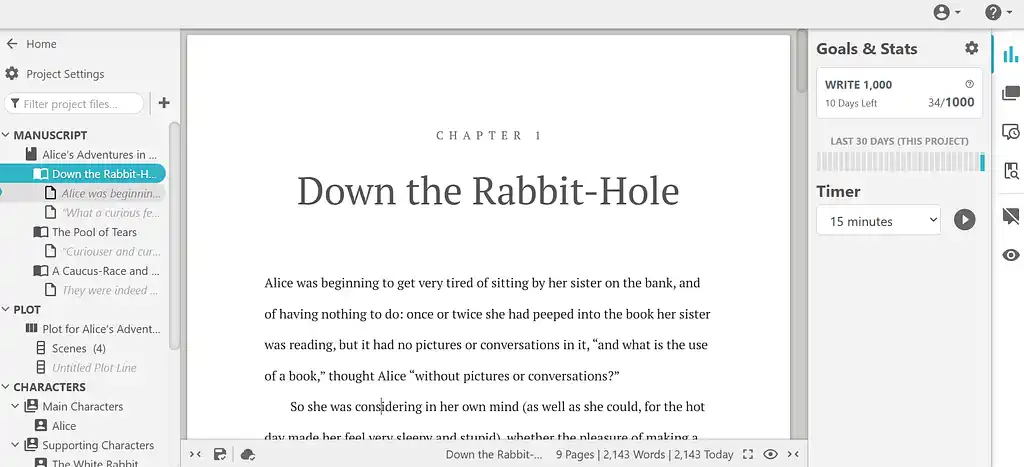
Scrivener (2/5)
While they still don’t clutter the screen, Scrivener has so many menu options that even the most basic actions can be difficult to complete. You can do a lot more with Scrivener than you can with Dabble, but you have to be prepared to spend hours learning how all the extra features work. Scrivener is one app where you really shouldn’t skip the interactive tutorial!
Unlike Dabble, Scrivener does let you import a .docx file. However, you still have to add a hashtag (#) before each chapter or scene for it to work properly.

Now let’s look at some of the specific features for writing and editing in more detail.
Writing & Editing
- Dabble (3/5): All the features you need to get started.
- 🏆 Scrivener (5/5): Nearly all the features you’ll ever want.
Dabble (3/5)
Dabble might not have as many features as Scrivener, but it does offer everything a beginner writer might need. Some of its most impressive features include:
- a thesaurus;
- a style and grammar checker (which can be turned on/off separately to the basic spell checker);
- the option to get the computer to read your text aloud;
- project and daily goals, with the option to set days off;
- a countdown timer;
- a distraction-free focus mode that turns on automatically as you write; and
- an optional dark mode.
However, it’s worth noting that many of these features are only available on the most expensive plan.

Scrivener (5/5)
In contrast, all of Scrivener’s features are included at a single price point. The software matches Dabble’s capabilities, except for the countdown timer — and boasts plenty more. Some of its standout features include:
- a split screen option to view two chapters side-by-side;
- snapshots so you can save and restore versions of your draft; and
- a name generator for your characters.

What Scrivener doesn’t have is the ability to collaborate with other authors or editors.
Collaboration Features
- 🏆 Dabble (3/5): Real-time collaboration, but no tracked changes.
- Scrivener (1/5): No real-time tools, though a Dropbox workaround is possible.
Dabble (3/5)
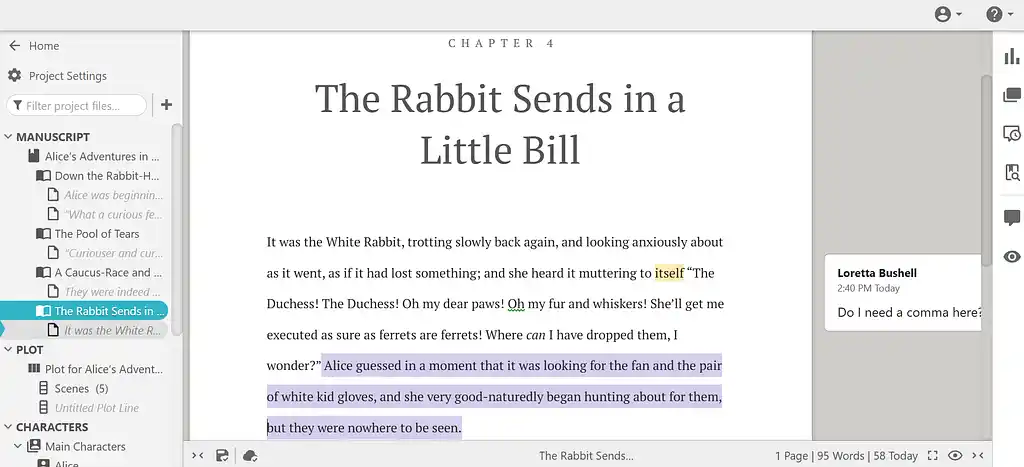
Dabble does offer the opportunity to collaborate in real time, but with some caveats. You can have up to five co-authors on each project, but every person needs their own (expensive) Premium Dabble subscription in order to make edits.
The text written by each author has its own unique color and collaborators can add comments to each other’s work. However, there’s no “tracked changes” feature, meaning someone can edit your writing directly and you won’t be able to see what they’ve changed. This falls short of the standards reached by other software such as our very own Reedsy Studio.
Scrivener (1/5)
Although Scrivener doesn’t support collaboration or sharing, you can get around this by setting up a shared Dropbox folder (or equivalent) and making sure only one person opens the project at a time, syncing before and after each session. It’s a bit awkward, but it works.
The other option is to export each draft as a Word or PDF file, collect feedback outside the app, and then make the necessary changes in-app — also somewhat inconvenient.
However, Scrivener makes a comeback in the next category, organization and plotting.
Organization & Plotting
- Dabble (4/5): Decent plotting grid.
- 🏆 Scrivener (5/5): Excellent binder and corkboard.
Dabble (4/5)
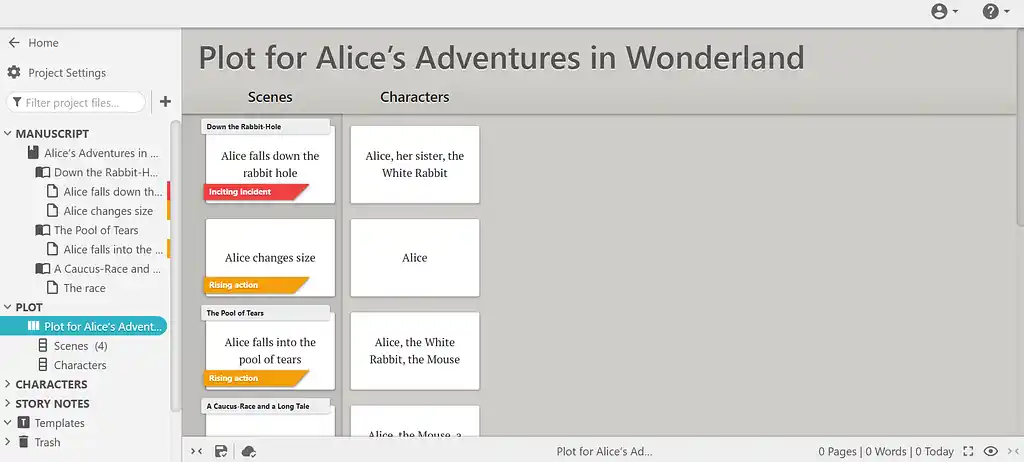
Dabble has a decent plotting grid for mapping out your story. The scenes column automatically syncs with your manuscript and you can add other columns as desired for subplots, characters, story beats, etc. You can drag and drop these virtual index cards to rearrange your story structure and even color code the cards.
Dabble also has a section where you can add notes on your characters, world, etc. However, unlike Reedsy Studio and other top-tier plotting apps, it lacks prompts or templates to help with your planning.
Scrivener (5/5)
Scrivener does have some templates and its corkboard has more customization options than Dabble’s plotting grid — including the option to add media.
What really sets Scrivener apart is its Binder, which combines the organizational prowess of a physical ring-binder with the convenience of digital storage. You can rearrange chunks of your manuscript with a simple drag-and-drop, or store images, web links, notes, character sketches, and more in the Binder’s research folder. This makes for a handy “bible” that you can reference as you work on your book.

Now let’s consider the other end of the process. How does each software fare when it comes to formatting and exporting your finished manuscript?
Formatting & Export
- Dabble (1/5): Limited style choices and no ebook export.
- 🏆 Scrivener (4/5): Functional, but clunky to configure.
Dabble(1/5)
Dabble fares very badly. The only export options are Word, Google Docs, web, and text. These are handy for getting feedback from beta readers — but you’ll have to use a different app such as Reedsy Studio to convert your manuscript to an EPUB format (so you might as well edit your manuscript there, too!).
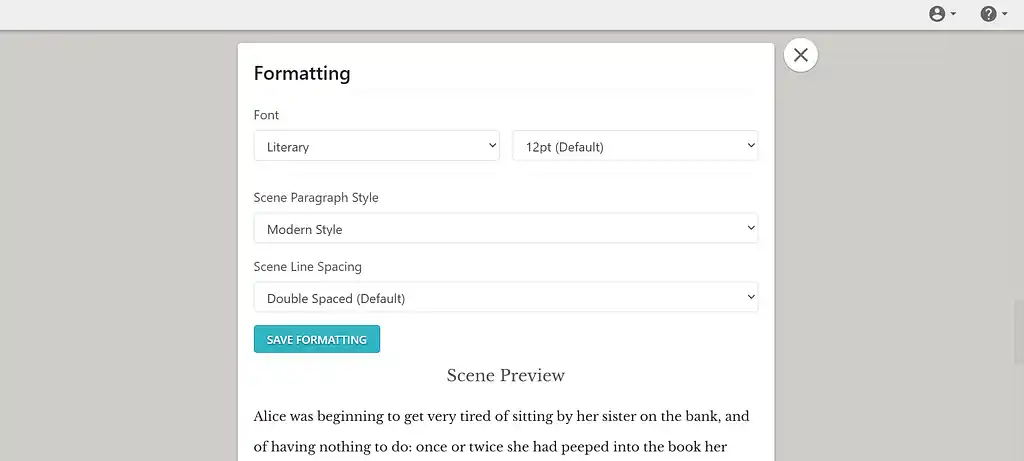
In terms of fonts and style, Dabble has a few different templates for different genres. You can also choose between a narrow range of fonts and styles in the project settings, but there is limited scope for personalization or creativity.
Scrivener (4/5)
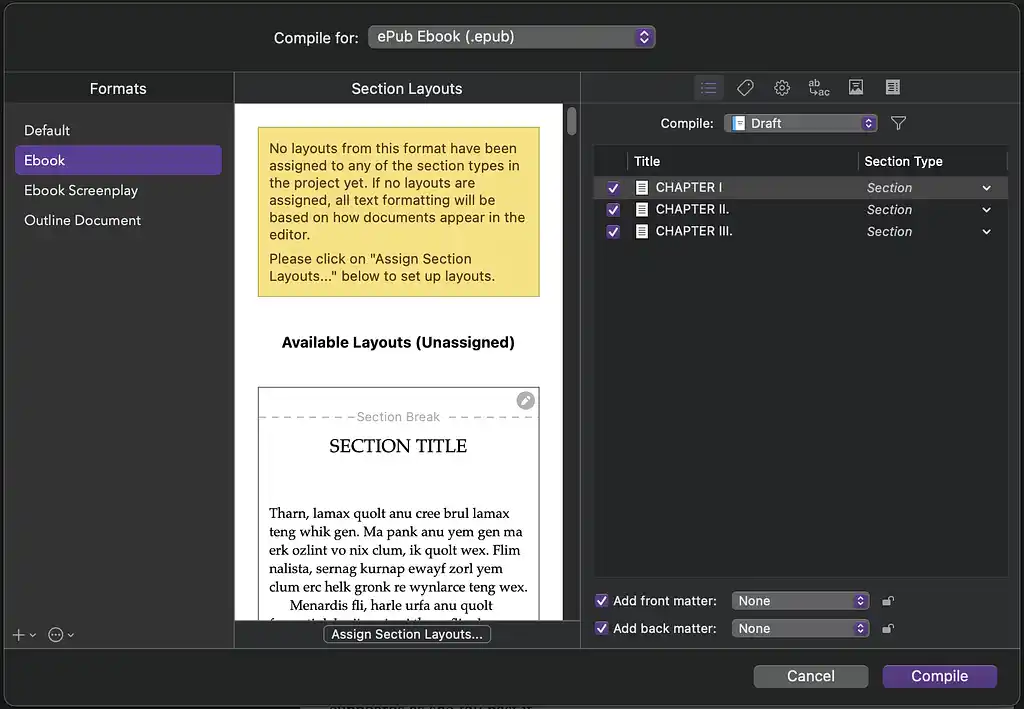
Scrivener’s export options are much better. The software’s Compile feature lets you export your manuscript as an EPUB or MOBI file, complete with metadata, cover images, and a table of contents. You can also adjust fonts and style to customize your ebook.
However, as with everything on Scrivener, the export process is not very intuitive and demands a fair degree of time and experimentation. It’s great if you want to fine-tune the layout of your book, but not as good as other formatting software like Reedsy Studio if you’re just looking for a convenient way to get your manuscript retail-ready.
Now that we’ve seen what Dabble and Scrivener can and can’t do, let’s look at how much they cost and whether they provide value for money — as well as which platforms they’re compatible with.
Pricing and Platform Availability
- Dabble (2/5): Expensive subscription model; syncs between desktop and web apps.
- 🏆 Scrivener (4/5): Affordable one-time fee; fully offline, but no Android version.
Dabble (2/5)
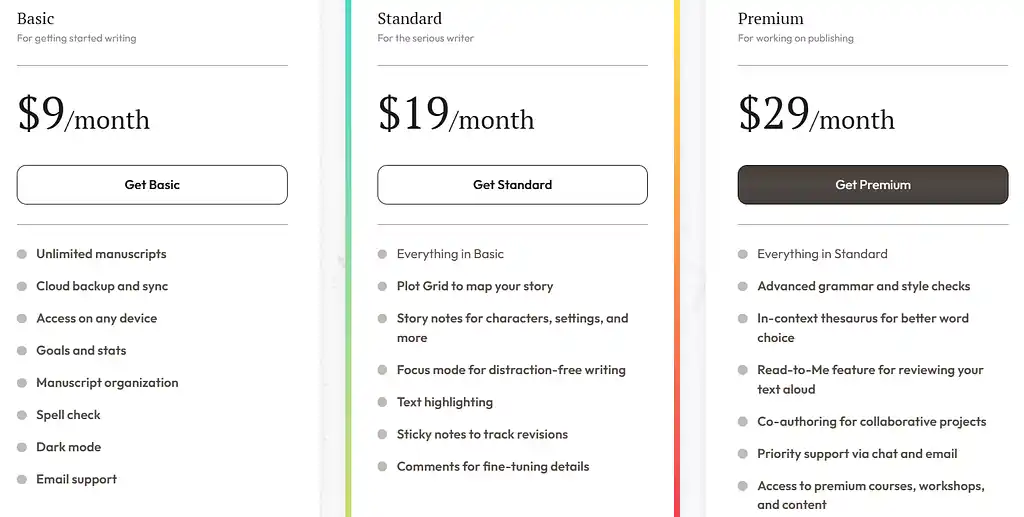
Dabble is actually the more expensive of the two, despite having fewer functionalities. The pricing model is tiered, starting at $9 per month. If you want access to plotting tools and focus mode, it’s $19 per month — and to add co-authors, it’s $29 per month. This feels on the expensive side.
One thing Dabble does have going for it is its cross-platform capabilities. You can work on the desktop app or on the web and your changes will automatically sync.
Scrivener (4/5)
Scrivener is a more affordable option. $59.99 may sound more expensive, but you only have to pay once — meaning you’ll be saving money compared to a Basic Dabble subscription after only 7 months.
The other great thing about Scrivener is that its free trial doesn’t run for 30 continuous days — it runs for 30 days of actual use. So, if you only write once a week, it lasts you 30 weeks!
The downside of Scrivener is that as a desktop app (available on Mac, Windows, and iOS), it saves everything directly to your laptop. This means that it’s up to you to back up your work regularly (for example, using Dropbox or OneDrive); otherwise, one mistimed laptop crash could cost you everything.
On the plus side, you don’t need a constant internet connection to edit your manuscript.
Conclusion: which tool wins?
If we add up the scores, Scrivener wins with 21 points, while Dabble only scores 16 points. However, which tool is better for you depends on which criteria you value most highly.
- Choose Dabble if you want to be able to dive straight in at home or on the go and don’t mind paying premium prices.
- Choose Scrivener if you want to customize your writing experience and would rather invest more time than money.
Or if you aren’t sold by either, give Reedsy Studio a try. You’ll find a beautiful and intuitive editor with better collaboration features than Dabble, as well as essential plotting tools.
Other writing app listicles, reviews, and comparisons on Reedsy:
-
Book writing software (Listicle)
-
Writing tools (Listicle)
-
Collaborative writing tools (Listicle)
-
Scrivener alternatives (Listicle)
-
Grammarly alternatives (Listicle)
-
Plagiarism checkers (Listicle)
-
Proofreading software (Listicle)
-
AI writing tools (Listicle)
-
Grammar checkers (Listicle)
-
Atticus (Review)
-
Campfire (Review)
-
Dabble (Review)
-
Grammarly (Review)
-
Hemingway (Review)
-
Novlr (Review)
-
Obsidian (Review)
-
Plottr (Review)
-
ProWritingAid (Review)
-
Scrivener (Review)
-
Squibler (Review)
-
Sudowrite (Review)
-
Ulysses (Review)
-
Vellum (Review)
-
Grammarly vs. Hemingway (Comparison)
-
Reedsy Studio vs. Atticus vs. Scrivener (Comparison)
-
Scrivener vs. Word (Comparison)
-
Ulysses vs. Scrivener (Comparison)