Posted on October 06, 2025 14:33
Obsidian Review: Not Just a Planning Tool?
Obsidian is a note-taking software that allows you to build a “digital web” of your thoughts and ideas through interconnected notes. It’s popular among writers as a tool for worldbuilding and note organization, but some writers also use it to draft their manuscripts — although it's not explicitly designed for book writing.
In this article, we’ll evaluate Obsidian’s performance as a planning and book writing application based on five factors — user interface, organization tools, book writing, book formatting, and pricing — to help you determine whether it’s a tool worth adding to your arsenal.
We’ll start off with a quick overview:
⭐ Reedsy Rating: 3/5 ⭐
⚖️ Verdict: Obsidian is a powerful tool for planning and note organization with a steep learning curve. Writing a manuscript solely in Obsidian is possible, but it’s time-consuming and far from intuitive.
👑 Best for: In-depth planners who like to visualize how their ideas relate to one another.
🌟 TrustPilot rating: 4.3/5 — good.
💰 Cost: Free base plan, with option to add premium features like Sync for $5/month or Publish for $10/month.
📆 Launched: Originally released in March 2020, with regular updates since.
💻 Compatibility: The desktop app is available for download on Windows, macOS, and Linux. A Mobile app is also available for iOS and Android.
| ✅ Pros |
❌ Cons |
| Free basic plan | Syncing between devices locked behind paywall |
| Powerful planning and organization tool | Steep learning curve for beginners |
| Highly customizable | Additional plugins required for manuscript writing |
| Active community & developers | No real-time collaboration |
| Cross-platform compatibility | No visual formatting toolbar (relies on typed commands) |
Now, let’s dive deeper into what Obsidian offers, starting with the interface.
User interface: 3/5
Obsidian’s interface may look sleek and straightforward to use, but the learning curve is steep for beginners. Obsidian does offer an in-depth tutorial on their website, which is accessible through the in-app help menu, but it only covers the basics. If you want to make the most of Obsidian’s more advanced features, you’ll likely need to do a lot of out-of-app research and third party installation.
Setup
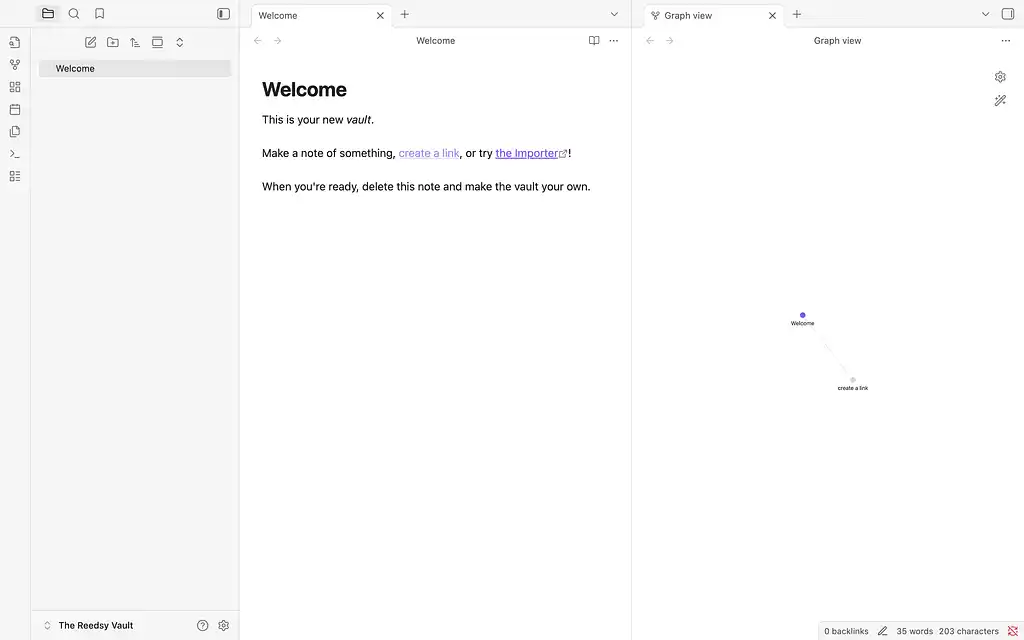
When you first launch Obsidian, you’ll be prompted to create a “Vault,” which is a folder on your local file system. From there, you can create “Notes,” which are stored on your computer as text documents. Once you’ve created your Vault, you’ll be taken to your dashboard, like so:
And that’s it! Obsidian’s setup and tutorial is complete.
For such a feature-rich program, Obsidian’s in-app tutorial leaves a lot to be desired. Its hands-off approach may be enticing to users that want to explore its many features themselves, but it can be frustrating for those looking to start writing immediately. Certain features (like a word counter or changes tracker) are only available with third-party plugins, which you’ll need to find, install, and set up yourself.
The dashboard
As you can see in the screenshot above, Obsidian’s dashboard is divided between a folder view on the left, a notes editor in the center, and a graph view on the right. We’ll briefly go through each one here.
Folder view
Using the folder pane, you can view your vault’s file structure in a collapsible tree format, similar to what you'd find in Windows Explorer or macOS Finder. Much like with local file storage, you can organize your notes using nested folders and subfolders, drag and drop files between folders, and use the search function to quickly locate specific notes.
Whenever you arrange your notes using folder view, you’re also moving them around on your local storage system. That means you can manage your files using either Obsidian or your computer's file explorer interchangeably — whichever you prefer!
Notes editor
The notes editor is where you’ll spend most of your time writing and editing. Unlike a standard word processor, Obsidian uses Markdown formatting. That means there are no formatting buttons like “bold” or "style" — instead, you’ll need to type syntax like **bold** or ## Heading to format your text accordingly. This might not be an issue for quick notes, but can be a real draw-back if you’re planning on writing a full manuscript on the app.
You can have multiple notes open simultaneously using tabs, or you can replace the graph view with another note for easy cross-referencing between documents.
Graph view
We’ll go more in depth on the graph view during our organization section below, but for now, all you need to know is that it acts as a display for how your notes link together, creating a sort of web of interconnected ideas. Each note is represented by a node, with lines connecting notes that link to one another. You can zoom, pan, and click on nodes to navigate between different notes.
Customization options
At first glance, Obsidian’s customization options may seem a little basic. However, the real power of Obsidian’s customization lies in its themes. These are community made CSS stylesheets that transform your Obsidian’s appearance entirely.
Simply click on the cog in the bottom left, and navigate to "appearance". From there, you can toggle between light and dark mode, select your preferred accent color, and tailor the size and style of your font.
At the time of writing, there are 377 themes available in the community catalogue, each of which provide their own unique visual flair. If that’s not enough, you can also scour Obsidian’s official forum and Discord server for further customization options.
Obsidian mobile
Instead of a three-pane layout, Obsidian’s mobile app displays one pane at a time that you can quickly flick between. Most community themes are also compatible with the mobile app, so your notes can look as impressive on the go as they do on your desktop.
Editing notes on mobile is straightforward but the graph view isn’t quite as intuitive to use as it is on desktop. The inability to see both your notes and graph at the same time makes the experience a little clunky, though this problem is somewhat inevitable thanks to the smaller screen size. While you aren’t likely to plan things too extensively using the mobile app, it’s a handy tool you can use to jot things down when you get a sudden flash of inspiration (provided you pay for Obsidian Sync, which we’ll cover later on.)
Organization tools: 4/5
Organization is where Obsidian really shines. Because a Vault is just a folder on your local drive, and Notes are simple .md text files, you can organize your work using folders and subfolders just as you would with any other file on your computer. The core of Obsidian’s extensive organization features lies in the linked note system.
The linked note system
You can link notes together by wrapping another note's name in double square brackets. For example, if you want to create a link between a town and the country it belongs to, you’d include “[[country]]” somewhere in the town note.
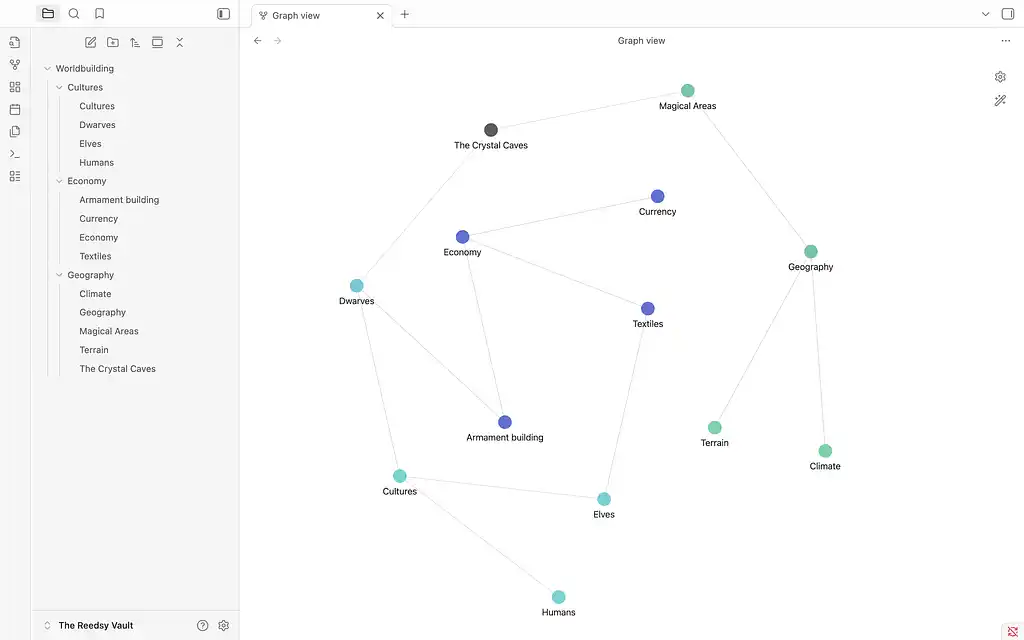
Using Graph view, you can see how your notes connect to one another. To give you an idea of what you can accomplish, here’s a basic worldbuilding web we put together for a fake fantasy novel:
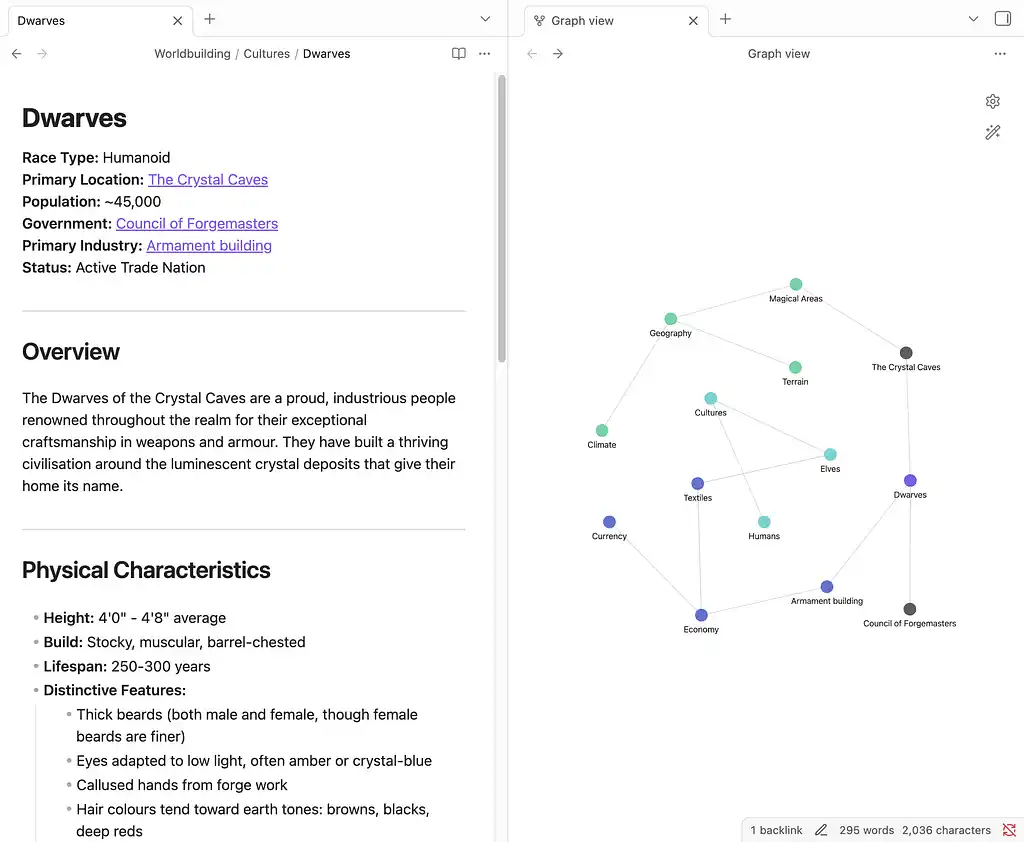
Each note is divided into separate folders and color coded for convenience. In this world, Dwarves live in the Crystal Caves, and their commerce relies primarily on armament production, ergo the links between those three notes. And of course, each one is full of specific detail, which you can expand upon by adding new nested notes and zooming in on the graph.
You’re not just limited to worldbuilding here — you can create separate folders for themes, characters, and narrative arcs. As you continue to add notes to your project, graph view will help you visualize opportunities for different areas of your story to connect. You can even color code each area to create some visual distinction between them.
Tags
Did you notice those #s before “race” and “location” in the image above? Those are “tags,” which provide another layer of organization for users to utilize in their projects. By adding topics or characteristics as tags and attaching them to relevant notes, you can quickly find any notes that fall under that category.
In our sample worldbuilding template, we’ve created a tag for “race”. After clicking on a tag, a list view of everything labelled under that tag is displayed, like so:
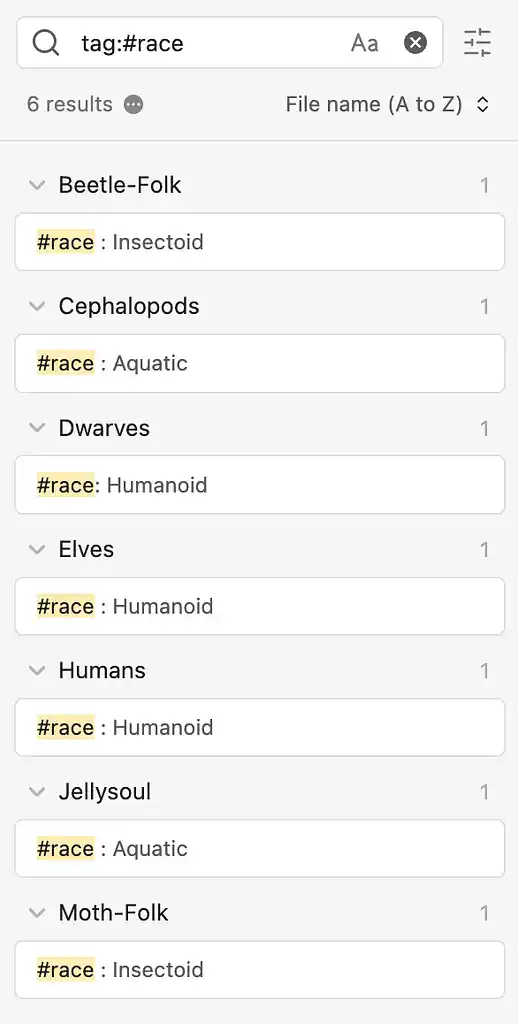 If you’re using Obsidian to plan your chapter beat by beat, tags can help you track themes and character appearances across different scenes. If, for example, you find that a theme isn’t quite as prominent as you’d like it to be, you can spot the gaps at a glance and add it to the relevant scenes.
Attachments
Obsidian allows you to import a variety of different files for use in your vault, including images, audio files, and PDFs. You can drag and drop an attachment into a note, and Obsidian will create a file with the pasted content in your vault.
Unfortunately, formatting attachments within Obsidian isn’t so straightforward. Let’s say you want to move or resize an image within a note. Instead of a simple click-and-drag function, you’ll need to use an HTML dropdown to control your file’s appearance.
More advanced positioning — such as floating an image beside text or centering it on the page — requires HTML div tags and inline CSS styling. This more technical approach feels cumbersome and unintuitive compared to more visual editors like Google Docs.
Now that we've covered how Obsidian handles planning and organization, let's examine how it performs as an actual writing tool.
Book writing: 2/5
While Obsidian may be a great option for planning your book, it’s not necessarily the best option for writing it. After all, it’s not a traditional word processor like Scrivener or Reedsy Studio. That doesn’t mean you can’t write your book in Obsidian, just that you’ll need to jump through some hoops to do so.
Obsidian can handle long documents well enough, but the note system isn’t suited to long-form writing projects. Instead, you’ll need to write each chapter or scene as a separate note. If you want to organize your work into one comprehensive manuscript, you’ll need to install a separate plugin (like Longform) to help you do so.
Your plugin installation session won’t stop there, however. Standard word processing features like a live word count, goal tracker, real time collaboration features, or a comments and changes tracker will all require separate plugins as well. Again, you can add all of these features using community-built plugins, but for authors that want to dive into the writing process immediately, this amount of technical overhead will represent a significant barrier to productivity.
Book formatting: 1/5
While optimizing Obsidian for book writing can be time-consuming, some writers may find it worth the effort if they’ve already used the program to fully plan out their story. However, the same cannot be said for book formatting.
To fully design your book in Obsidian, you’ll need to use a long series of CSS markdowns to add page numbers, headers & footers, page breaks, a ToC, etc. If you aren’t already a proficient CSS user, formatting your manuscript this way will be a long and unnecessarily tedious process, especially when there are hassle-free alternatives available for no extra cost.
Pricing: 4/5
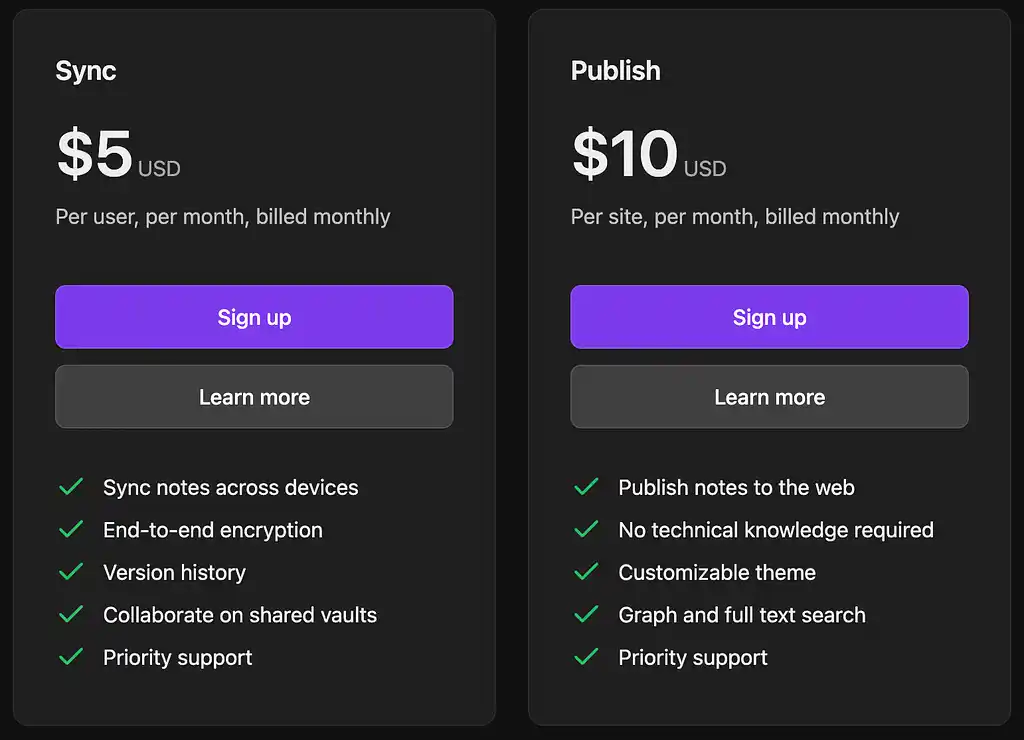
The vast majority of Obsidian’s features are included in the basic, free-to-use plan, but additional “Sync” and “Publish” add-ons are also available. For more details, you can read about Obsidian’s pricing here, but we’ll provide a quick overview below.
Obsidian Sync
As the name implies, this pricing tier focuses on syncing your notes across different devices. You can pick and choose which Vaults and Notes you’d like to sync to your offline backup. Sync works across different OS systems, so if you use Windows at home and iOS on the go, you’ll still have access to your files. It’s worth noting here that Obsidian offline is available for free — Sync will simply, well, sync any work you do offline between your devices.
With Sync, you gain access to shared Vaults, which allow you view version history, allowing you to see previous iterations of your work. It also allows you to collaborate with other users on a project.
Unfortunately, each user will have to pay for their own Obsidian Sync subscription to collaborate. Even worse, Sync doesn’t offer real-time collaboration, a feature that other note-taking apps (like Notion) offer free of charge. You also can’t fine tune permissions for each collaborator, meaning everyone has the same level of access to your shared Vault.
The Sync add-on costs $5 per month, or $4 per month if you choose to pay annually.
Obsidian Publish
Publish is an add-on that allows you to upload your notes to a publicly accessible website with just a few clicks.
By selecting the notes from your Vault that you’d like to publish, Obsidian will generate a clean, searchable site that preserves all your internal links and graph connections. Publish sites are customizable with various different themes, and they’re optimized for SEO and mobile use.
The Publish add-on costs $10 per month, or roughly $8 per month if you opt for annual billing. The use-case for Obsidian Publish is a little niche, but if you’re looking to build a detailed author website or online wiki for your fantasy world, it may be worth the investment.
Obsidian also offers two more premium licenses (Catalyst and Commercial), but they don’t offer any extra features. Catalyst gives you access to beta versions and an exclusive Discord server, while Commercial is required for companies that use Obsidian for business purposes.
Final verdict: who should use Obsidian?
Obsidian has one of the most active and enthusiastic communities of any writing software out there, and it’s clear to see why. Between the hundreds of community-made themes and plugins, few tools can match the depth of organization and customization that Obsidian provides, especially considering its price point.
However, with great power comes great… complexity. If you want to get the most out of Obsidian, you’ll need to spend a lot of time sifting through Discord logs, forums, and YouTube videos to understand its various features.
For technically-minded planners who don’t mind learning the ins and outs of the software and want to see how every element of their story connects, Obsidian offers planning and customization options that few other tools can match. If you’re the type of writer that prefers to dive straight into the drafting process, however, running through Obsidian’s plugin installation gauntlet likely isn’t worth the time investment.
From our perspective at Reedsy, the real sweet spot for Obsidian is using it alongside traditional writing software. If your story requires extensive planning, you can use Obsidian for your notes and worldbuilding while you draft and format your manuscript in a more writer-friendly tool like Reedsy Studio. Alternatively, if Obsidian still feels a little too technical, you can use our book writing templates to help you plan out your story.
Reedsy rating: 3/5 ⭐
Other writing app listicles, reviews, and comparisons on Reedsy:
-
Book writing software (Listicle)
-
Writing tools (Listicle)
-
Collaborative writing tools (Listicle)
-
Scrivener alternatives (Listicle)
-
Grammarly alternatives (Listicle)
-
Plagiarism checkers (Listicle)
-
Proofreading software (Listicle)
-
AI writing tools (Listicle)
-
Grammar checkers (Listicle)
-
Atticus (Review)
-
Campfire (Review)
-
Dabble (Review)
-
Grammarly (Review)
-
Hemingway (Review)
-
Novlr (Review)
-
Plottr (Review)
-
ProWritingAid (Review)
-
Scrivener (Review)
-
Squibler (Review)
-
Sudowrite (Review)
-
Ulysses (Review)
-
Vellum (Review)
-
Dabble vs. Scrivener (Comparison)
-
Grammarly vs. Hemingway (Comparison)
-
Reedsy Studio vs. Atticus vs. Scrivener (Comparison)
-
Scrivener vs. Word (Comparison)
-
Ulysses vs. Scrivener (Comparison)