Posted on August 19, 2025 06:52
Atticus Review: Is It Worth The Money?
Atticus positions itself as a one-stop solution for indie authors, combining both a book editor and a formatting tool in a single platform. To see if it lives up to the hype, we tested its features, from importing a manuscript to exporting a polished file.
Before diving into the details, here’s a quick overview:
- 🎂 Origin: Launched in 2021 by Dave Chesson, founder of Kindlepreneur.com
- 💸 Price: $147 one-time payment (lifetime updates, 30-day money-back guarantee)
- 💻 Compatibility: Works on Windows, Mac, Linux, and Chromebook
- 🌐 Access: Browser-based + limited offline functionality
- 👌 Best for: Indie authors who want granular customization options and systematically format and publish multiple titles.
|
✅ Pros |
❌ Cons |
|
|
Verdict: Atticus is best suited to indie authors who value book customization and professional-looking exports, delivering strong formatting at a fair price, though its basic editor means it won’t replace your primary writing app.
Let’s take a deeper look.
User interface (3/5)
From the home page, you can start a new book, update an existing one, or create a box set. For our test, we uploaded Jules Verne’s A Journey to the Centre of the Earth as a .docx file.
This is the page you land on, where you can edit the book’s details, as well upload your own cover.
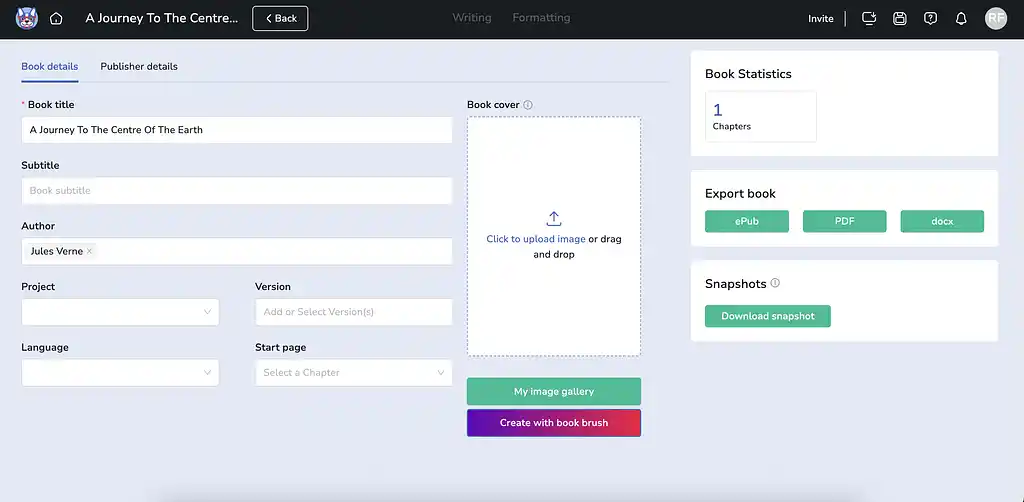
From the top bar, you can invite co-authors, editors, or beta readers to collaborate — but only if their email is linked to an Atticus account (meaning they’ve also purchased it). This limitation makes the feature far less convenient and useful than it could be.
🚧 One interesting thing I noticed: I created a second book project and tried to delete it in Chrome, but it wouldn’t go away. When I logged in from Safari, though, it was already gone. Because Atticus uses local caching for its offline mode, you can occasionally run into small sync hiccups like this.
To head to the manuscript editor, you must click on the grey (and barely visible 😅) Writing button. But before we do that, a note on using it offline.
Offline mode
Atticus is primarily a web-based application, accessible from any browser on any device. It also offers an offline option through a Progressive Web App (PWA) you can download. That said, it’s not a true standalone offline app: you’ll still need to open your book in the browser first, after which you can continue editing offline. An internet connection is still required for importing and exporting files. It’s a handy feature if you want to write on a train or plane, but given the price point, a fully functional desktop app with complete offline capabilities would be ideal.
Alright, onto the book editing!
Book writing (2/5)
Atticus’ editor is clean, distraction-free, and functional, but visually quite plain. It’s obvious from the start that it’s designed more for formatting than for writing. While you can customize plenty of page elements to improve the look, the actual writing environment leaves much to be desired.
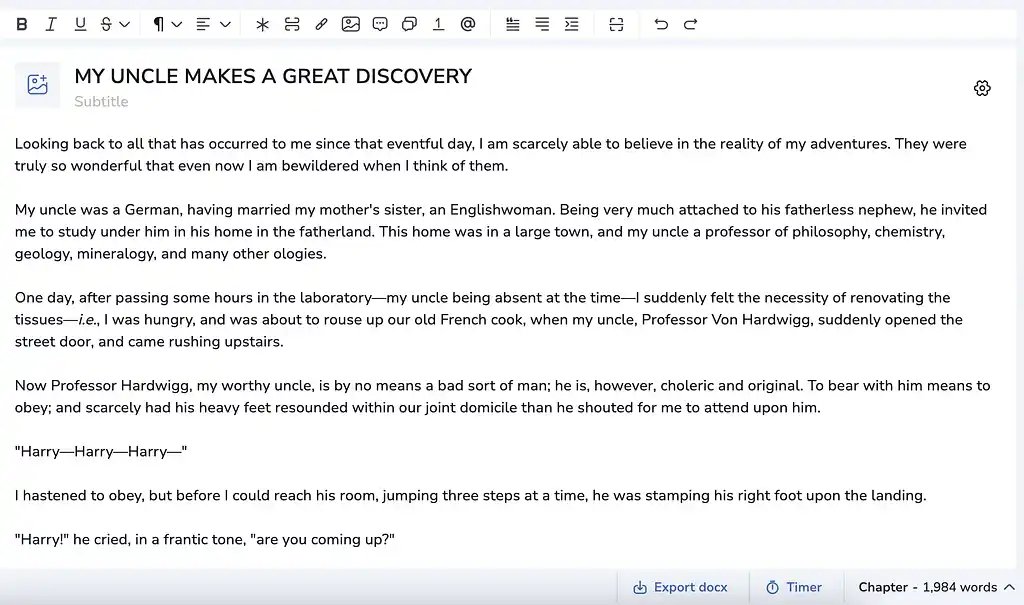
Importing the manuscript wasn’t as smooth as expected either. If your manuscript comes from Google Docs and uses headings to mark chapters, Atticus won’t recognize them — it imports everything as one chapter, so you’ll have to split them manually, which is quite tedious. On the plus side, it imports images without issue.
Atticus also “strongly discourages” copy-pasting text into the editor, which can be frustrating. Since one of its main drawbacks is the lack of a built-in grammar checker, if you write directly in Atticus but then run your text through Grammarly (or another proofreading tool) and paste it back, you might run into issues. (The workaround here is to paste without formatting using Ctrl+Shift+V or Cmd+Shift+V on Mac).
The editor supports some classic features like text formatting (bold, italics, etc.), scene and page breaks, as well as images, footnotes, and hyperlinks.
Text decoration
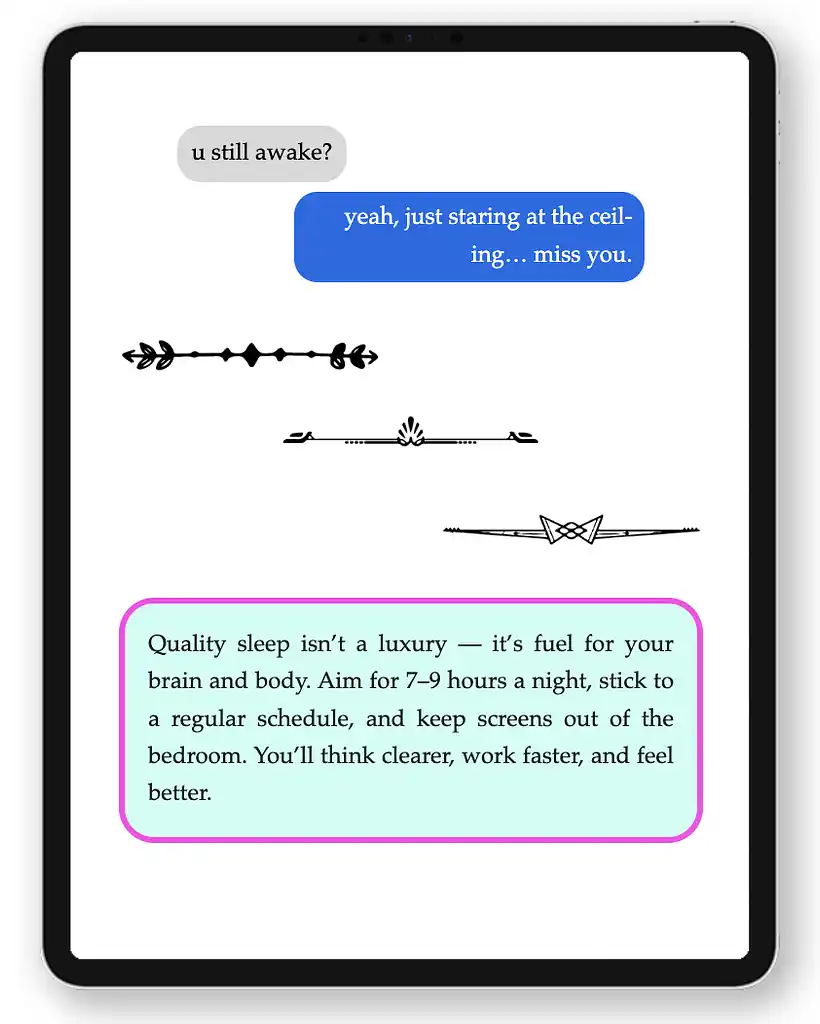
One standout aspect of Atticus is its range of stylistic flourishes,
including:
-
Callout boxes (great for highlighting information in
![Atticus screengrab]() nonfiction)
nonfiction) - Decorative page breaks (36 styles to choose from)
- “Text message” formatting (perfect for epistolary passages in YA, Romance, or Literary Fiction.)
 nonfiction)
Each of these features comes with surprisingly granular controls. You can fine-tune callout boxes by adjusting border color, thickness, and corner roundness, or even choose whether text messages mimic the look of iOS or Android chats.
On the bottom of the editor you have the option to set a timer to write (it’s mostly just a simple countdown), a word counter (by book, chapter, or text selection), and an option to download the book file as .docx (not formatted, but useful for quick backups).
Manuscript polishing
On the right panel, you can find a few other interesting settings and tools:
- ✍️ Editor Settings: to customize the writing environment with four different font types and sizes.
- 🔍 Find and replace: to apply changes to a single chapter or the entire book.
- 🤝 Collaborations: to see all the comments from your co-authors or editors.
- 🎯 Goals and Tracking: for both project-based goals (word count targets with deadlines) and habit tracking (daily writing streaks).
- ⏸️ Smart Quotes: to automatically convert straight quotes to curly quotes. The tool also includes an "Inconsistencies" tab that flags mixed quote usage, which is really helpful.
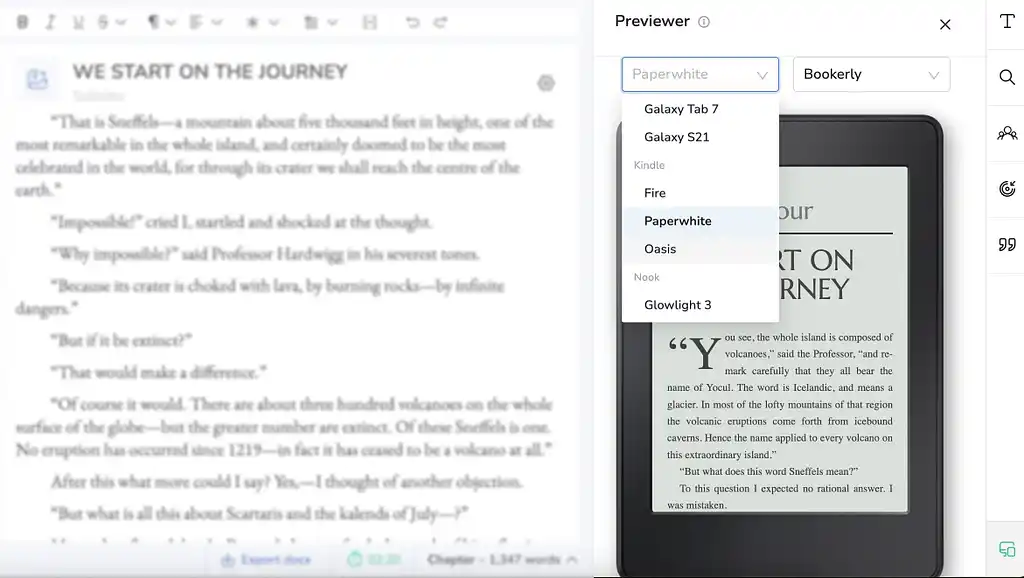
- 👀 Previewer: one of Atticus's best features. You can preview your formatted book across different e-reader types, fonts, and sizes in real-time.
Front and back matter editing
On the left panel, you can edit some book details, set up a copyright page, and preview the table of contents.
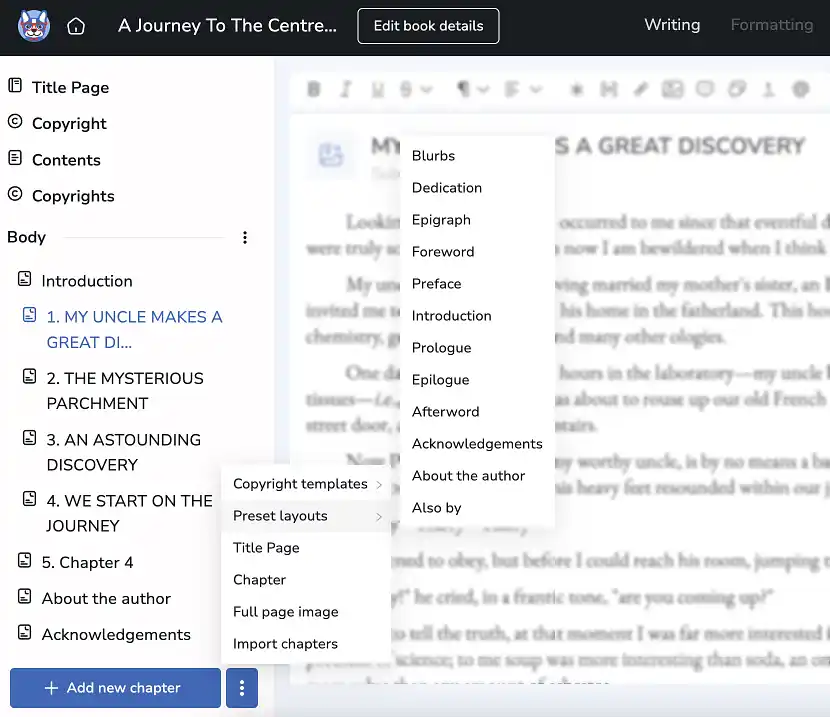
Below that, you’ll see a list of chapters you can drag and drop to rearrange. A large blue button lets you add new chapters, and if you click on the three dots you can insert the front and back matter. The selection is extensive — from copyright pages (with templates for both fiction and nonfiction) to dedication pages, forewords, prefaces, and just about every other element you might need.
Once you’re happy with the book, you can click on Formatting on the top bar to export it.
Book formatting (5/5)
This is the page where you’ll get your book file ready for all kinds of distribution platforms. You can preview your manuscript one last time and then download it as a reflowable PDF or EPUB (one that will adjust to fit different screen sizes and devices). The exported file will match exactly what you see in the preview.
Theme customization
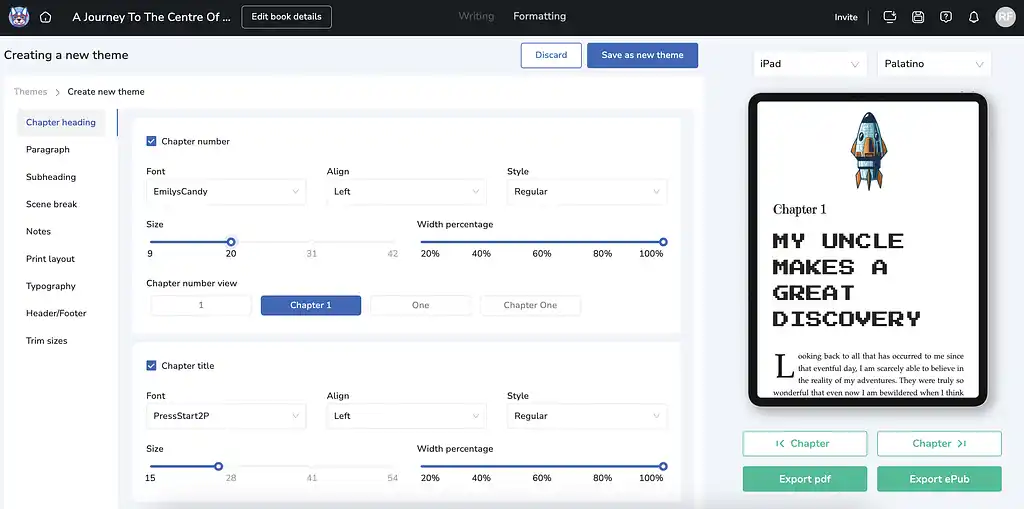
You’ll also find the option to apply a custom theme (choosing from 17 templates, or creating one yourself). I found it a bit odd that this step comes so late in the process, since some users might prefer to set their theme before fine-tuning their manuscript in the editor.
That said, the real highlight is the ability to build your own theme. You can tweak fonts, sizes, and alignment for chapter headings, titles, and pretty much every other element of the book. It gives you plenty of creative freedom, though it’s worth noting that when it comes to formatting, more personalization isn’t always better if it tempts you away from a clean, professional look.
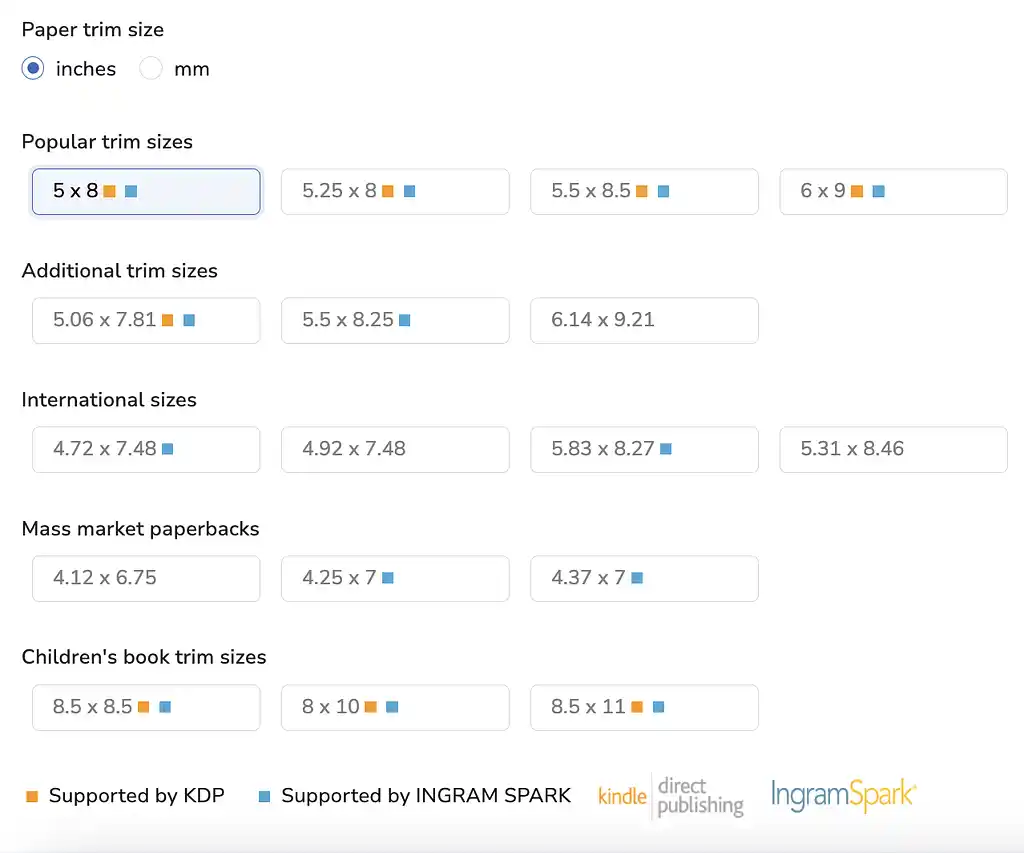
Trim sizes
If you’re planning to print your book, you’ll need to select a trim size. This can be done by creating a custom theme and choosing your preferred dimensions, then saving the new theme. Atticus does a good job in showing which sizes are supported by the two biggest print-on-demand services: Amazon KDP and IngramSpark.
Pricing (3/5)
Atticus costs $147 as a one-time purchase — significantly cheaper than its main competitor, Vellum ($249), while also offering cross-platform compatibility that Vellum doesn’t.
The deal is simple: pay once, and you can use it for every book you’ll ever publish, whether it’s your first or your fiftieth. There are no extra fees, and the 30-day money-back guarantee makes it risk-free to try.
Overall, Atticus strikes a good balance between affordability and functionality. It’s not flawless, but it does give indie authors an accessible way to create professional-looking books.
Final verdict: should you buy Atticus?
Atticus delivers on its core promise: professional book formatting at an affordable, one-time cost. Its clean interface, cross-platform accessibility, and deep customization options make it especially appealing to indie authors who would make use of the granular formatting features and publish frequently.
That said, Atticus is not an all-in-one writing environment. Its plain editor, lack of plotting and research tools, and weak collaboration system mean most authors will still need a separate app for drafting and editing. While the lifetime license and formatting power can make Atticus a smart investment for long-time authors, you may be better off starting with alternatives like Reedsy Studio which offers advanced manuscript editor and formatter, with 3 book templates and even some plotting options in its free version.
⭐️ Final rating: 3.25/5
Other writing app listicles, reviews, and comparisons on Reedsy:
-
Book writing software (Listicle)
-
Writing tools (Listicle)
-
Collaborative writing tools (Listicle)
-
Scrivener alternatives (Listicle)
-
Grammarly alternatives (Listicle)
-
Plagiarism checkers (Listicle)
-
Proofreading software (Listicle)
-
AI writing tools (Listicle)
-
Grammar checkers (Listicle)
-
Campfire (Review)
-
Dabble (Review)
-
Grammarly (Review)
-
Hemingway (Review)
-
Novlr (Review)
-
Obsidian (Review)
-
Plottr (Review)
-
ProWritingAid (Review)
-
Scrivener (Review)
-
Squibler (Review)
-
Sudowrite (Review)
-
Ulysses (Review)
-
Vellum (Review)
-
Dabble vs. Scrivener (Comparison)
-
Grammarly vs. Hemingway (Comparison)
-
Reedsy Studio vs. Atticus vs. Scrivener (Comparison)
-
Scrivener vs. Word (Comparison)
-
Ulysses vs. Scrivener (Comparison)