Posted on June 02, 2026 02:13
Scrivener vs. Word: Which Writing App is Best for You?
There are dozens of writing tools on the market, but few as ubiquitous as Microsoft Word. As the OG writing app, it’s familiar to most people, from students to knowledge workers to full-time authors. It sets the standard for a simple but powerful text editor, but it starts to show its limits when it comes to book writing and production.
Scrivener was built as a direct answer to those limitations, designed for long, complex projects rather than reports and school assignments. But is it worth making the switch for?
In this article, we’ll go through the pros and cons of both Scrivener and Word to help you get an idea of which one (if either) is the right writing tool for you.
Here’s a quick overview:
|
Category |
Word |
Scrivener |
|
Pricing |
Free, web-based lighter version of Word or $99.99/year for the full program with Microsoft 365 Personal (including Excel, etc.) |
A one-time $59.99 fee for Mac or Windows or $97 for the Mac and Windows bundle. The iOS app is sold separately for $23.99 |
|
Platform Availability |
Offline and via web on Windows, Mac, iOS, Android; cloud sync via OneDrive |
Offline desktop app (Mac/Win/iOS); no Android app available |
|
User Interface |
Very beginner-friendly and familiar to almost everyone |
Powerful but with a steep learning curve; tutorials required |
|
Writing & Editing |
Solid word processor; strong proofing tools |
All the basics and then some (focus mode, split screen, goal tracking) |
|
Organization & Plotting |
Basic headings and navigation pane; search function. Complex planning requires creating multiple docs |
Helpful Binder and Corkboard features for planning and outlining, created specifically to meet the demands of pro writers |
|
Formatting & Export |
.docx, PDF; no native EPUB/ebook |
Compile to EPUB/MOBI; functional but complex |
|
Collaboration Features |
Real-time co-authoring, track changes, and comments makes collaborative writing and editing a breeze |
No collaboration features (Dropbox workaround available but a hassle) |
In a nutshell: Microsoft Word is for writers who want a familiar tool with easy collaboration features and minimal fuss. Scrivener, on the other hand, is for writers tackling long, structurally complex projects who want deep organization and don't mind a bit of a learning curve.
Interface & learning curve
- 🏆Word (4/5): Familiar and ready the moment you open it, with some limitations.
- Scrivener (2/5): Powerful, but you'll need the tutorial.
Word (4/5)
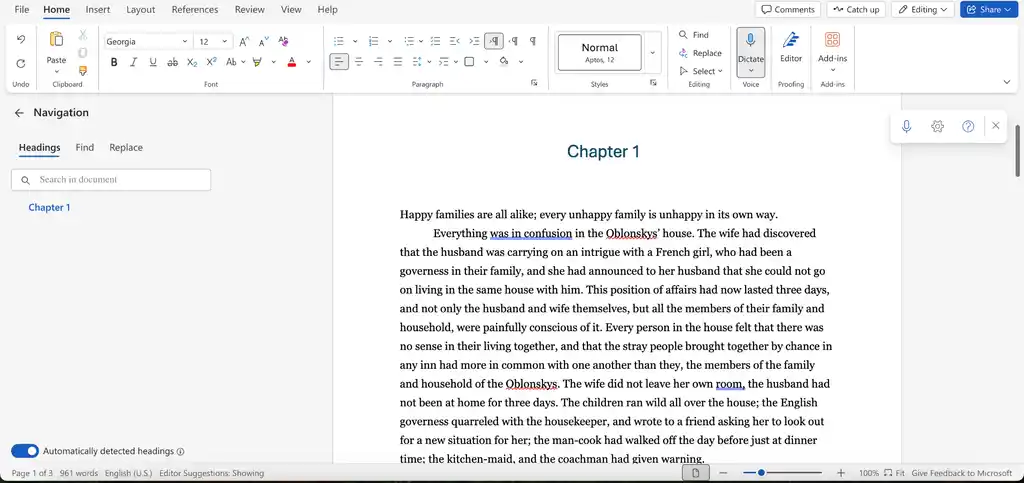
Word's biggest advantage is that for the majority of writers there's nothing to learn and nothing to migrate. Just start the program and open up a new document to get started.
The writing interface is intuitive and all the common functions are easily accessible from common short commands or the menu bar. You sometimes have to click around a bit to find the right features, but most things can be found where you’d expect them. You can also use the search or navigation pane in the sidebar to jump around the document, and you can switch between a few different designs for the interface.
However, Word treats your book as one long, linear document, so while it doesn’t get in your way early on, the simple interface starts to get strained as your manuscript and need for organization grow.
Scrivener (2/5)
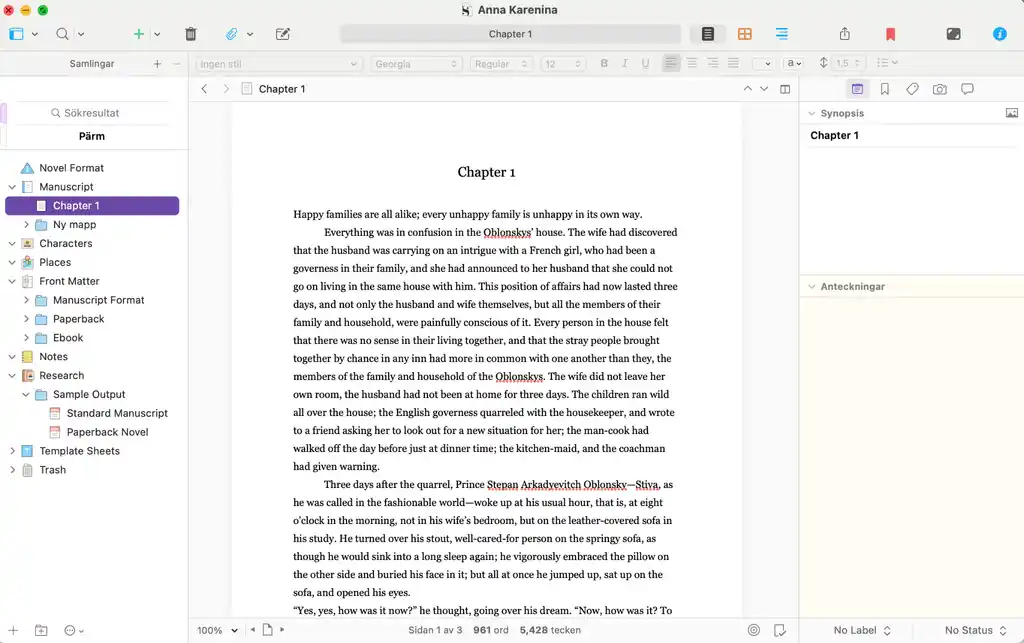
Switching to Scrivener means moving your draft over from whatever program you used before, which is the first taste of friction. The app does let you import a .docx file, but you have to add a hashtag (#) before each chapter or scene heading first or it won't split your manuscript correctly.
Then there's the app interface itself. Scrivener has so many menu options that even basic actions can be hard to find at first, and you'll need to invest real time in the interactive tutorial before it clicks. The payoff is that you can do far more than Word allows once you get used to it — but you have to decide whether that power is worth the upfront cost of getting there.
Now, let's look at what each tool is actually like to write and edit in.
Writing & Editing
-
Word (3/5): Everything you need for basic writing, and tools you already know.
-
🏆Scrivener (4/5): Nearly every feature you'll ever want for serious writing.
Word (4/5)
Word is a capable writing environment, and its proofing tools are a genuine strength: reliable spellcheck, grammar suggestions, comments, and track changes that you can use both to collaborate (more on this later) and to keep track of your editing and thought process.
For drafting prose, it does everything most writers need, and it does it in a no-frills interface you've likely already mastered. There’s a simple word count tracker, but no way to set daily writing goals. You can customize the text in various styles and fonts to suit your needs and choose between three different modes: editing (for when you’re just writing), reviewing (for when you want to track changes), and viewing (if you want to give someone access to read but not change anything in the doc). If you’re online, you can also check the version history if you’ve made changes that you regret and restore it to a previous version.
Scrivener (3/5)
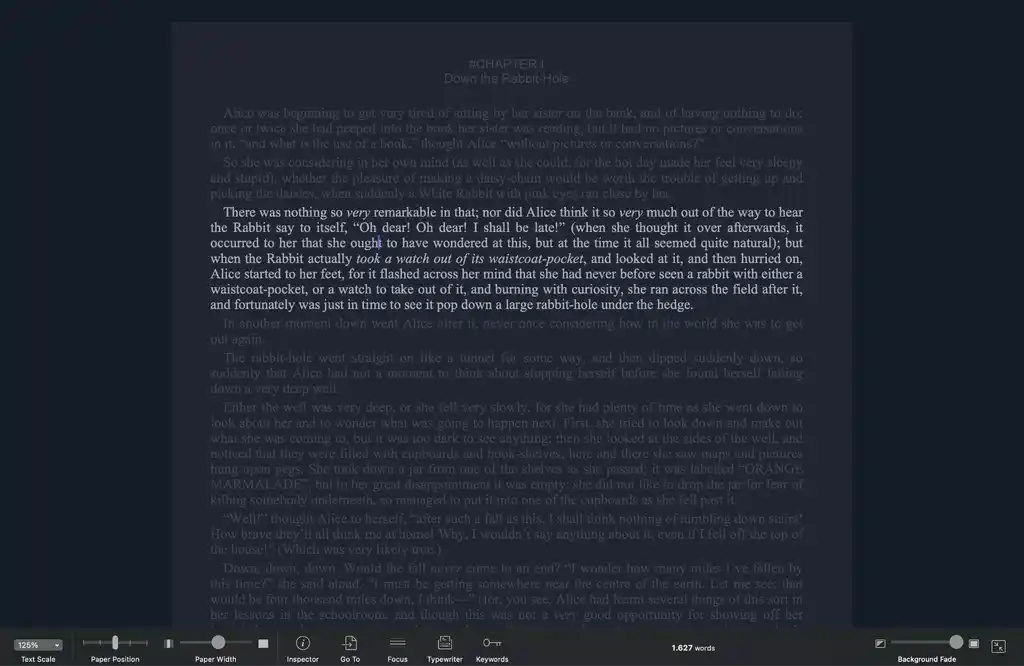
While Word sets the bar for basic writing features, Scrivener matches and goes beyond Word's basics with tools built specifically for long-form writing. A few standouts include:
-
a split-screen view so you can see two chapters (or notes) side by side;
-
snapshots, which let you save a version of a scene before revising and restoring it later if the changes don't work;
-
a focus mode that simulates a typewriter and is effective at blocking out distractions;
-
linguistic focus, which highlights specific word types — adverbs, adjectives, and the like — so you can catch your writing tics; and
-
project targets for tracking word counts by session or for the whole manuscript.
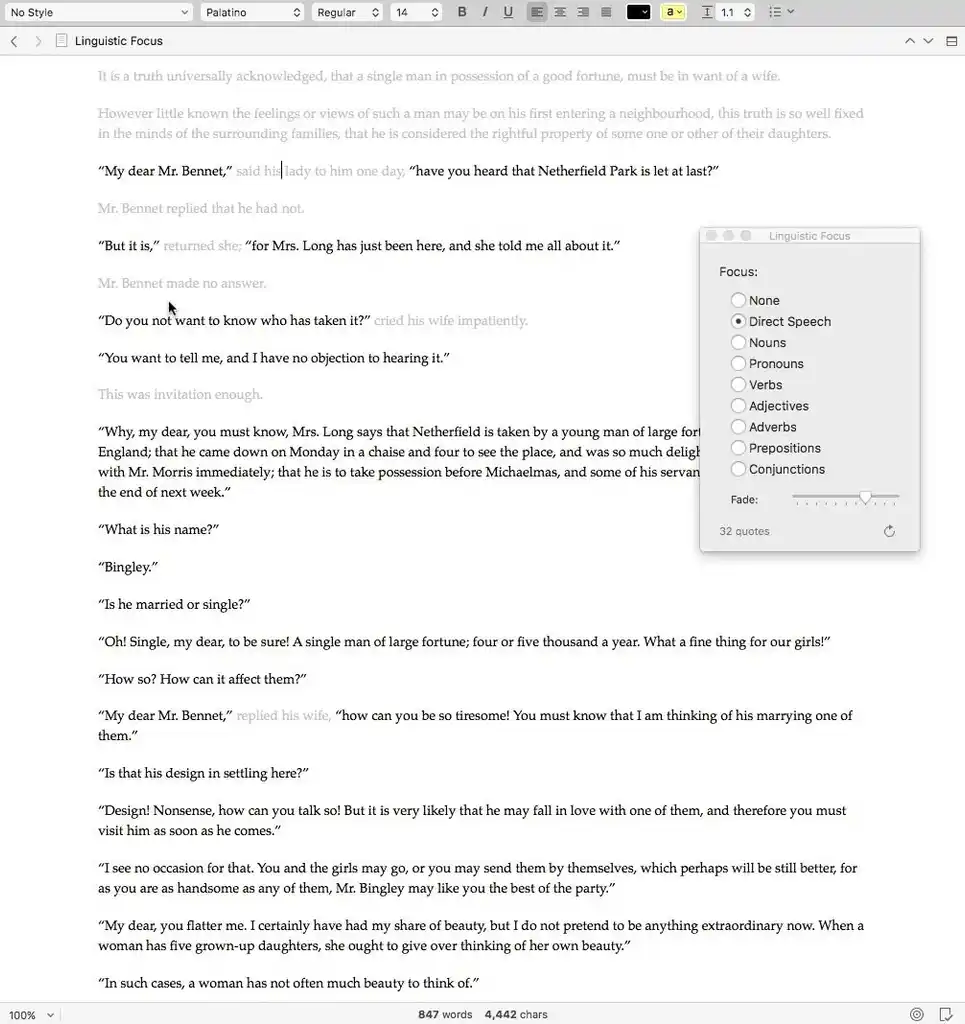
What Scrivener doesn't offer is a way to collaborate with co-authors or editors inside the app, which brings us to the next category.
Collaboration features
-
🏆 Word (5/5): Real-time co-authoring and the track changes beta readers and editors expect.
-
Scrivener (1/5): No real-time tools, though a Dropbox workaround exists.
Word (5/5)
Collaboration is where Word stands out compared to Scrivener. You get real-time co-authoring through OneDrive, comments, and — crucially — tracked changes. Not only is this a necessary tool for co-authoring and editing, but it’s also the industry standard for editors, meaning that even if you draft your manuscript in Scrivener, you’ll likely have to import it into Word again before sending it to a beta reader or editor.
Scrivener (1/5)
Scrivener, by contrast, has no built-in collaboration or real-time sharing at all. There are workarounds, but they're awkward. You can set up a shared Dropbox folder and coordinate carefully so only one person opens the project at a time, syncing before and after each session. Or you can export each draft as a Word or PDF file to gather feedback outside the app.
Either way, the moment you need another set of eyes on your manuscript, you end up leaning on Word anyway, which undercuts the case for switching, at least for collaborative projects.
Organization & plotting
-
Word (2/5): Headings and a navigation pane, and that's about it.
-
🏆 Scrivener (5/5): The Binder and Corkboard offer powerful organization tools.
Word (2/5)
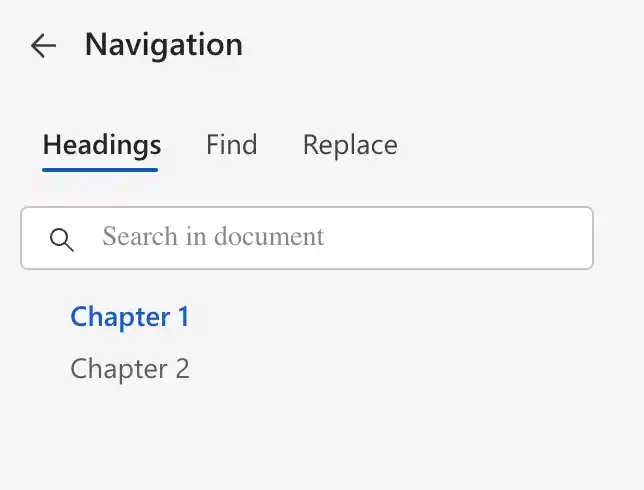
The navigation pane helps you move between chapters and sections; just use the formatting tools for headings.
Word's organizational tools are basic and clunky to use. You can structure a document with headings and jump around using the navigation pane or search, but there's no flexible way to quickly reorder scenes. Moving a chapter means selecting, cutting, scrolling, and pasting. The workaround is writing each chapter in a separate document, but for longer projects that can get out of hand pretty quickly.
Keeping your research, character notes, and outline alongside the manuscript is harder still, since it all has to live in the same long document or in separate files you juggle on your desktop.
Scrivener (5/5)
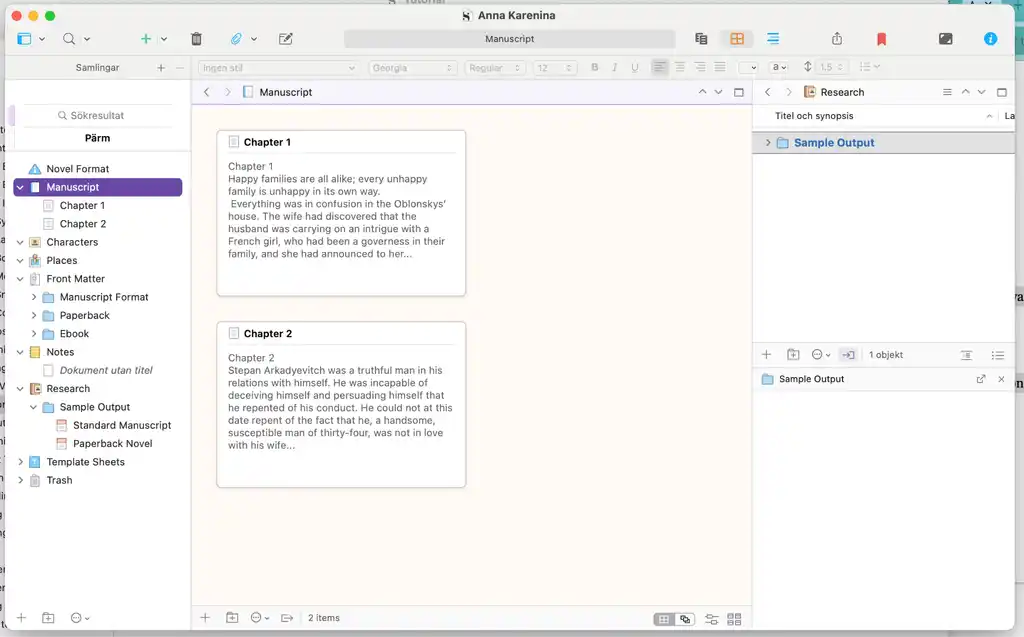
This is where a dedicated app proves its worth. Scrivener gives you two standout tools dedicated to planning:
-
The Binder combines the organization of a physical ring-binder with the convenience of digital storage. You can rearrange chunks of your manuscript with a simple drag-and-drop, and store images, web links, notes, and character sketches in its research folder, giving you a handy "bible" to reference as you write.
-
The Corkboard turns your scenes into virtual index cards you can shuffle to test your story's running order, color-code by arc or timeline, and even attach media to.
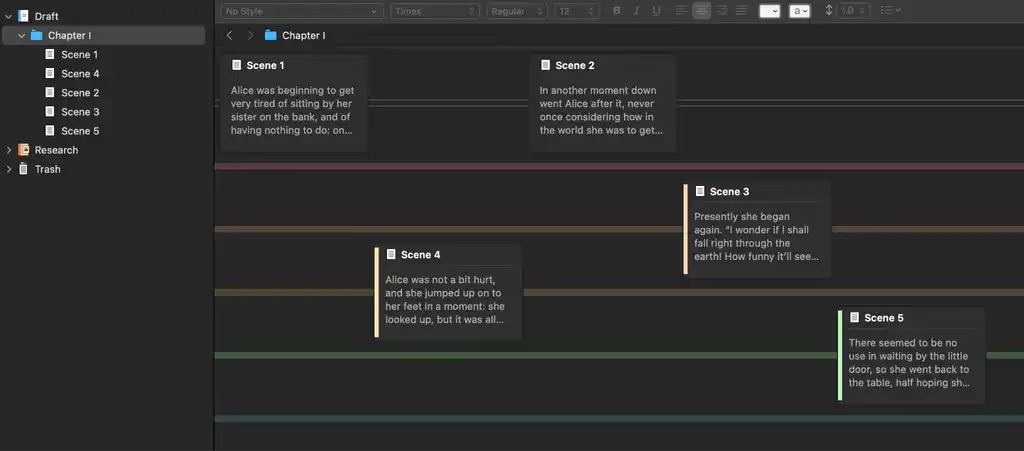
Scrivener also comes with templates to get you started, and the whole system is built around the assumption that you'll write and revise out of order. For a sprawling project, that flexibility is the biggest reason so many authors choose apps like Scrivener over Word.
Formatting & export
-
Word (2/5): Standard formats only; no native ebook export.
-
🏆 Scrivener (3/5): Exports EPUB and MOBI, but it's clunky to configure.
Word (2/5)
With basic headings and font settings, Word handles everyday text formatting for reports and text-only documents fine. It also exports cleanly to .docx and PDF, which is all you need for sharing a manuscript or sending it to an editor.
What it can't do is create an ebook or print-ready file. There's no native EPUB or MOBI export, and while it is possible to format your book in Microsoft Word, it requires a lot of manual maneuvering. So, if you're heading toward self-publishing, you may want to use a separate software to turn your manuscript into a retail-ready file.
Scrivener (3/5)
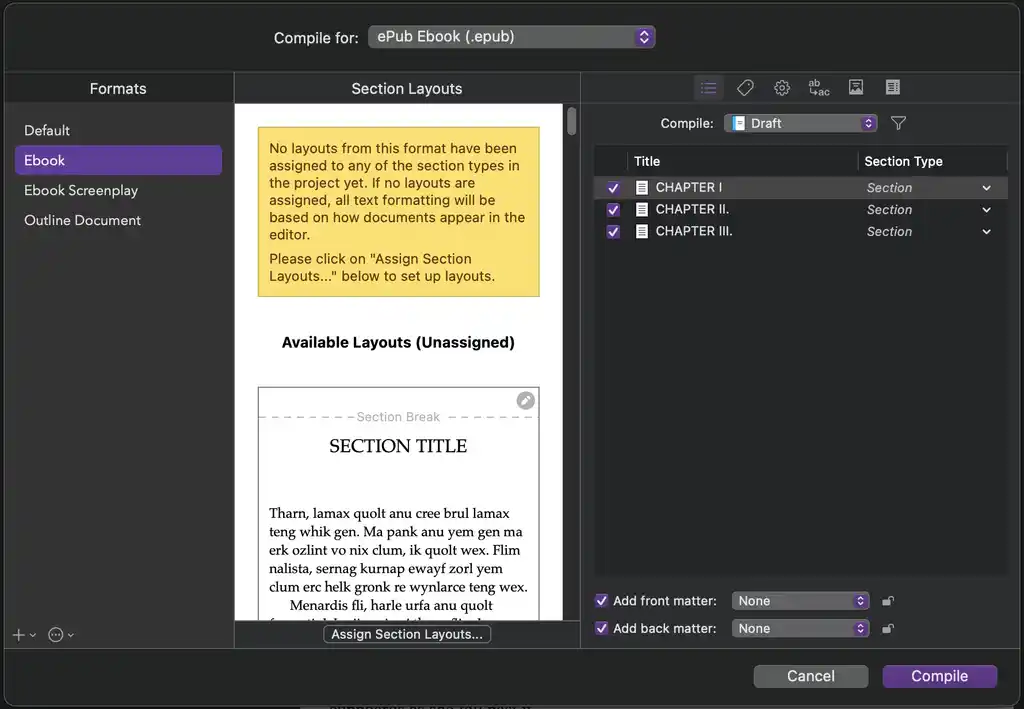
Scrivener's Compile feature is far more capable. It exports your manuscript as an EPUB or MOBI complete with metadata, a cover image, and a table of contents, and lets you adjust fonts and styling along the way.
The catch is that, like much of Scrivener, Compile isn't intuitive. It demands a fair amount of time and experimentation to get right. It's powerful if you want to fine-tune your book's layout, but if you just want a quick, clean route to a publish-ready file, a dedicated formatting tool like Reedsy Studio will get you there with far less fuss.
Pricing and Platform Availability
-
Word (3/5): Limited free web version or an ongoing subscription for the program that includes other apps like PowerPoint, Excel and Outlook plus support and cloud backup for $99.99/year. Available on all devices and operating systems.
-
🏆 Scrivener (4/5): Affordable one-time $59.99 fee for Mac or Windows or $97 for the Mac and Windows bundle. The iOS app is sold separately for $23.99一 there’s no Android version available.
Word (3/5)
Word follows a subscription model: you pay every year for a Microsoft 365 plan (which includes other Microsoft programs too, like Excel and PowerPoint) rather than owning it outright. In return, you get the broadest platform support of any writing tool: Windows, Mac, web, iOS, and Android, with your work syncing automatically through OneDrive. That cloud backup can be a genuine peace-of-mind — a laptop crash won't cost you your manuscript — and also helps support real-time collaboration.
You can get a 30-day free trial to see if the package deal is worth it or if the free web-based version of Word is enough for your needs.
Scrivener (4/5)
Scrivener costs $59.99, and that's a one-time fee. It may sound steeper up front, but you pay it once, which works out cheaper than an ongoing subscription before long. The free trial is unusually generous, too: it runs for 30 days of actual use rather than 30 continuous days, so if you only write once a week, it lasts you 30 weeks. The downside is that you will have to pay again if you want to get the latest version of the app.
The downsides are practical. Scrivener is a desktop app available on Mac, Windows, and iOS — but there's no Android version. And because it saves everything locally, backing up your work is on you (via Dropbox or OneDrive, for example). On the plus side, you don't need a constant internet connection to write.
Final verdict: which app is right for which writer?
Add up the scores and Scrivener are head to head. The two tools win for opposite reasons: Word for being effortless and universal, Scrivener for being powerful and purpose-built.
For authors who want no frills, Word provides all the basics you need, and having to get used to Scrivener might not be worth it if you need to go back to Word anyways for editing. For authors with more complex projects, Scrivener offers some powerful tools to help you stay organized and to make the writing process smooth.
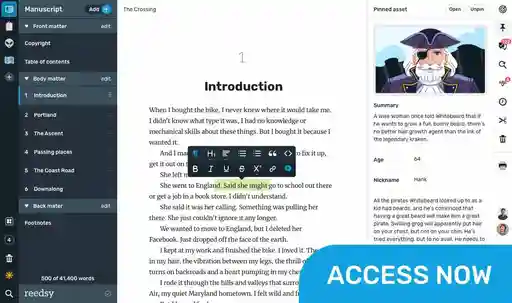
If you want Scrivener’s plotting power without the steep learning curve, plus real-time collaboration and one-click ebook exports, Reedsy Studio is worth a look. It combines planning, drafting, collaboration, and publishing tools in a much more streamlined package.
Other writing app listicles, reviews, and comparisons on Reedsy:
-
Book writing software (Listicle)
-
Writing tools (Listicle)
-
Collaborative writing tools (Listicle)
-
Scrivener alternatives (Listicle)
-
Grammarly alternatives (Listicle)
-
Plagiarism checkers (Listicle)
-
Proofreading software (Listicle)
-
Atticus (Review)
-
Campfire (Review)
-
Dabble (Review)
-
Grammarly (Review)
-
Hemingway (Review)
-
Novlr (Review)
-
Obsidian (Review)
-
Plottr (Review)
-
ProWritingAid (Review)
-
Scrivener (Review)
-
Squibler (Review)
-
Sudowrite (Review)
-
Vellum (Review)
-
Ulysses (Review)
-
Dabble vs. Scrivener (Comparison)
-
Reedsy Studio vs. Atticus vs. Scrivener (Comparison)
- Ulysses vs. Scrivener (Comparison)